Product demo videos: a guide for founders, marketers and sellers
By Ian Naylor ·
Drafted with AI assistance, then fact-checked and edited by Ian Naylor before publishing.
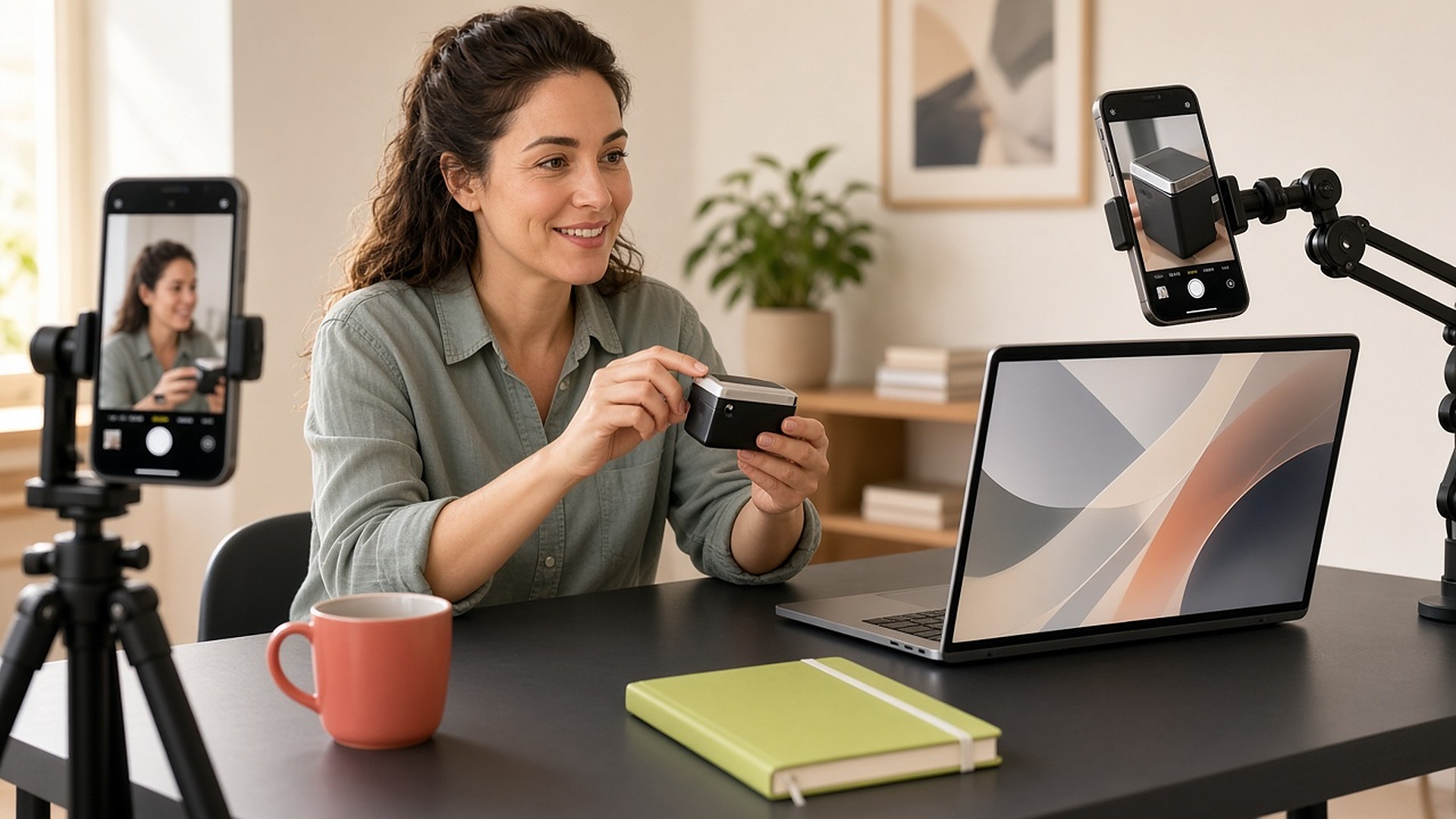
Product demo videos are the hardest-working asset most companies own. The same few minutes of footage sit on the homepage, go out after a first sales call, help new users through week one and get shared in launch posts. Yet the people who make them, usually a founder, a product marketer or a seller between calls, rarely have time, kit or editing skills. This guide is about that person: what gets in the way, what a good demo needs to show, and how to make one that looks produced without a studio.
If you want the step-by-step script and recording checklist, read how to record a product demo video that people finish. This post zooms out to the use case: who makes demos, why it is painful, and how to set up so every future demo is easier.
Who makes product demo videos (and why it is hard)
Three people end up owning the demo, and each has a different headache.
- The founder knows the product best and pitches it best, but every hour spent re-recording is an hour not spent on customers. Founders often end up with a one-take webcam video because "good enough" beats "never".
- The product marketer needs a polished demo for launches, the website and ads. They are judged on how it looks, so they either learn a complex editor or wait on an agency.
- The seller needs demos tailored to a deal, fast. They record dozens of quick screen-and-bubble videos that all look the same.
The common thread: a demo has to show three things at once (the product, the person and the details) and a single webcam can only show one.
The pain points, honestly
Ask anyone who has made a few product demos and the same list comes up:
- Tiny, unreadable screens. A full-screen recording on a phone or in a small embed turns your UI into grey mush unless someone adds zooms by hand.
- One fumble ruins the take. With a single angle there is nowhere to hide a cut, so you start again.
- Physical details are invisible. If your product involves hardware, a device, packaging or paperwork, the laptop camera simply cannot see it.
- Multi-camera is a project. Extra cameras mean extra apps, cables and files to line up afterwards, then a timeline of manual cuts.
- It all looks the same. A talking head in a bubble over a screen is now the default, so it no longer stands out.
Where the time goes, and what changes
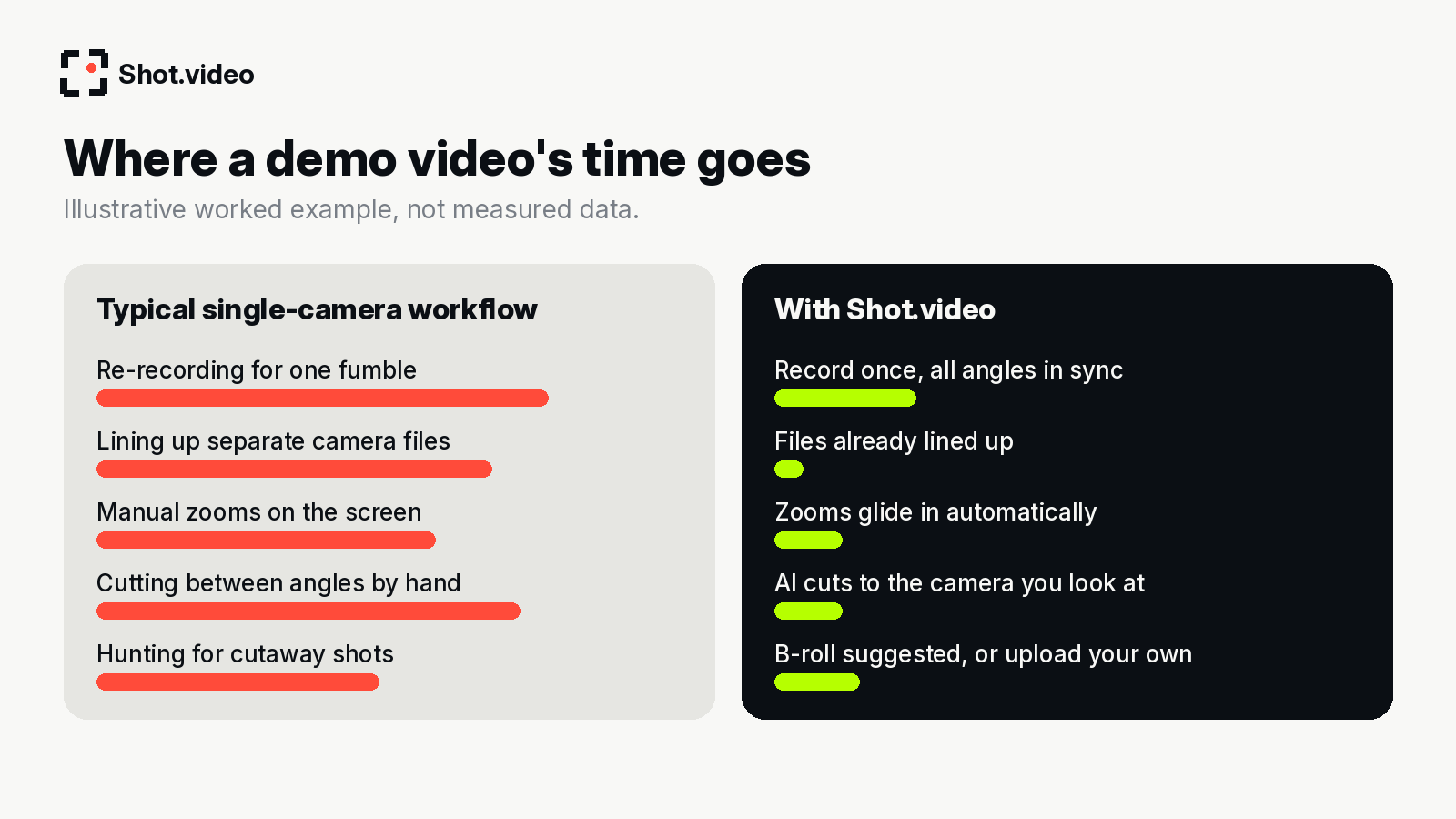
Here is a worked example, clearly illustrative rather than measured. A typical single-camera demo workflow might look like this: record, notice a stumble at minute three, record again; export; open an editor; add zooms on every important click; try to film close-ups of the product separately and line them up; then hunt for cutaway images to break up the talking. Each step is small. Together they turn a five-minute video into an afternoon.
With synced multi-camera recording, several of those steps disappear rather than get faster. The angles are recorded together, so there is nothing to line up. A stumble on the main camera can be covered by cutting to the close-up. Zooms are added for you. B-roll is suggested, or you drop in your own. What is left is the part only you can do: telling the story well.
Here is what Shot.video actually does, in plain terms. You record your screen, laptop camera and microphone, and add two to five phones as extra cameras by scanning a QR code. Nothing is installed on the phones; their browser does the recording. One button records every device in sync. Afterwards, AI builds a first edit: it cuts to the camera you are looking at, glides in on the part of the screen that is changing and holds there, and suggests B-roll cutaways you approve, trim, crop or move. You can also upload your own B-roll. Every choice stays editable.
The camera setup for product demos
You do not need to buy anything. Start with the laptop and one phone, then add more angles as the demo calls for them.
- Laptop: screen capture, front camera and mic. This is your base.
- Phone 1, product close-up: essential for hardware, packaging, devices or anything physical.
- Phone 2, wide angle: shows you and your desk, which builds trust and gives the edit somewhere to go.
- Phone 3, overhead: for hands-on demos, keyboard shortcuts or setting up a device. See the overhead camera setup guide.
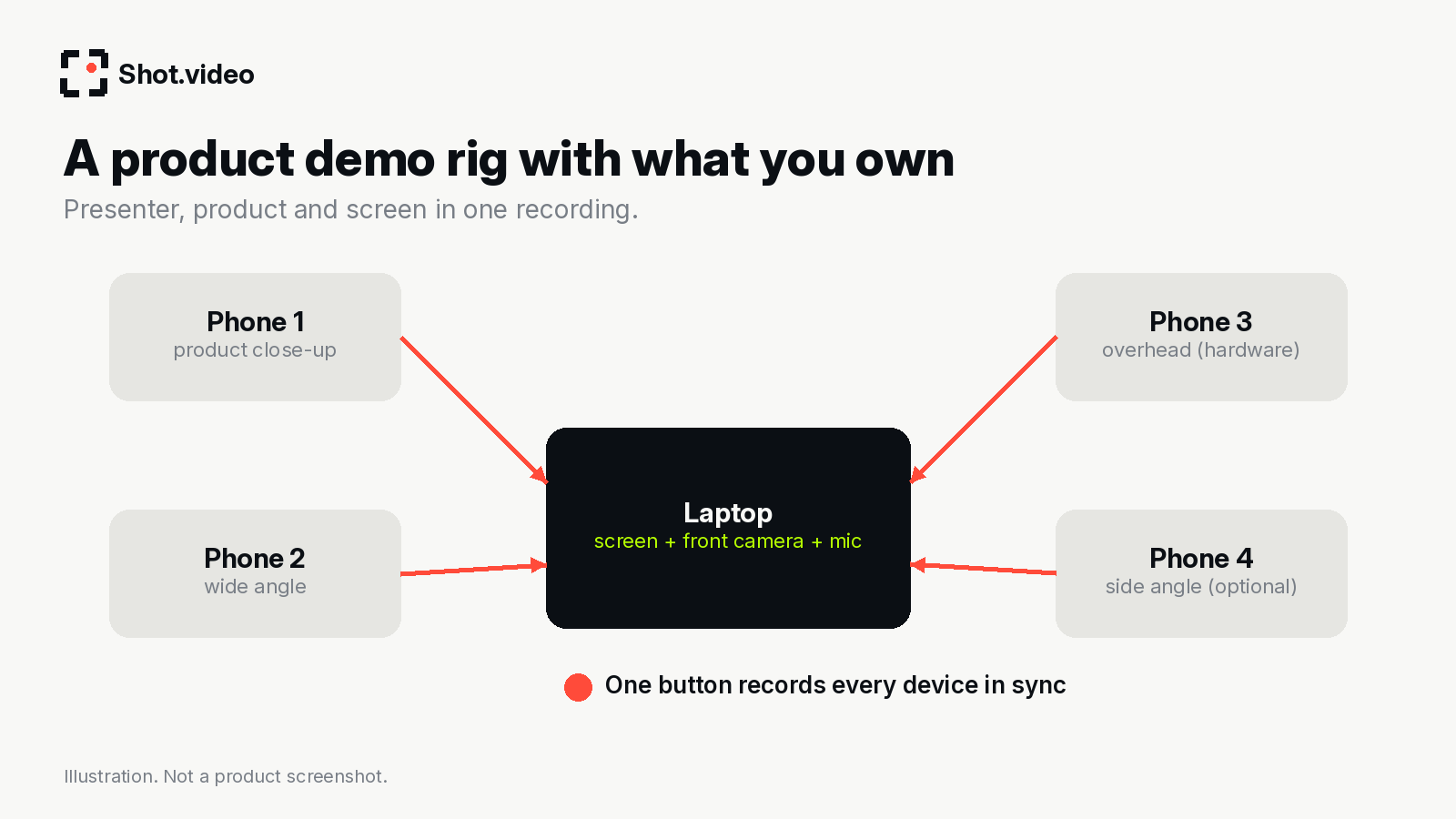
Connecting is the same for every phone: scan the QR code, place the phone in landscape and check the frame. A friend's or colleague's phone works too, because nothing is installed. More detail is in how to use your phone as a second camera.
How the AI edit helps a demo specifically
- Auto-switching follows your eyes. Look at the close-up camera when you pick up the product and the edit cuts there. Look back at the laptop for the explanation. You direct the edit simply by where you look.
- Zooms and pans make the UI readable. When you click into a settings panel, the view glides in on the part that changed and holds, instead of snapping in and out.
- Punch-ins add emphasis. A tighter shot on the key moment ("and that's the report, done") lands harder than a static frame.
- B-roll fills the talky bits. When you explain the problem before the solution, a cutaway keeps attention while your voice continues underneath.
- Screen styling. Show the screen clean, in a browser frame, or as a 3D showcase to suit the channel.
A product demo workflow you can repeat
- Pick the job of this demo: homepage, sales follow-up, onboarding or launch.
- Write three beats: the problem, the outcome, the three-step walkthrough. End with one ask.
- Prepare a clean demo account with realistic data and notifications off on every device.
- Set up the laptop and phones, scan the QR codes and check framing.
- Record once. Talk to the camera you want viewers to see.
- Review the first edit: approve or swap B-roll, adjust any cut or zoom.
- Publish the finished video where the demo is meant to live.
One demo, many jobs
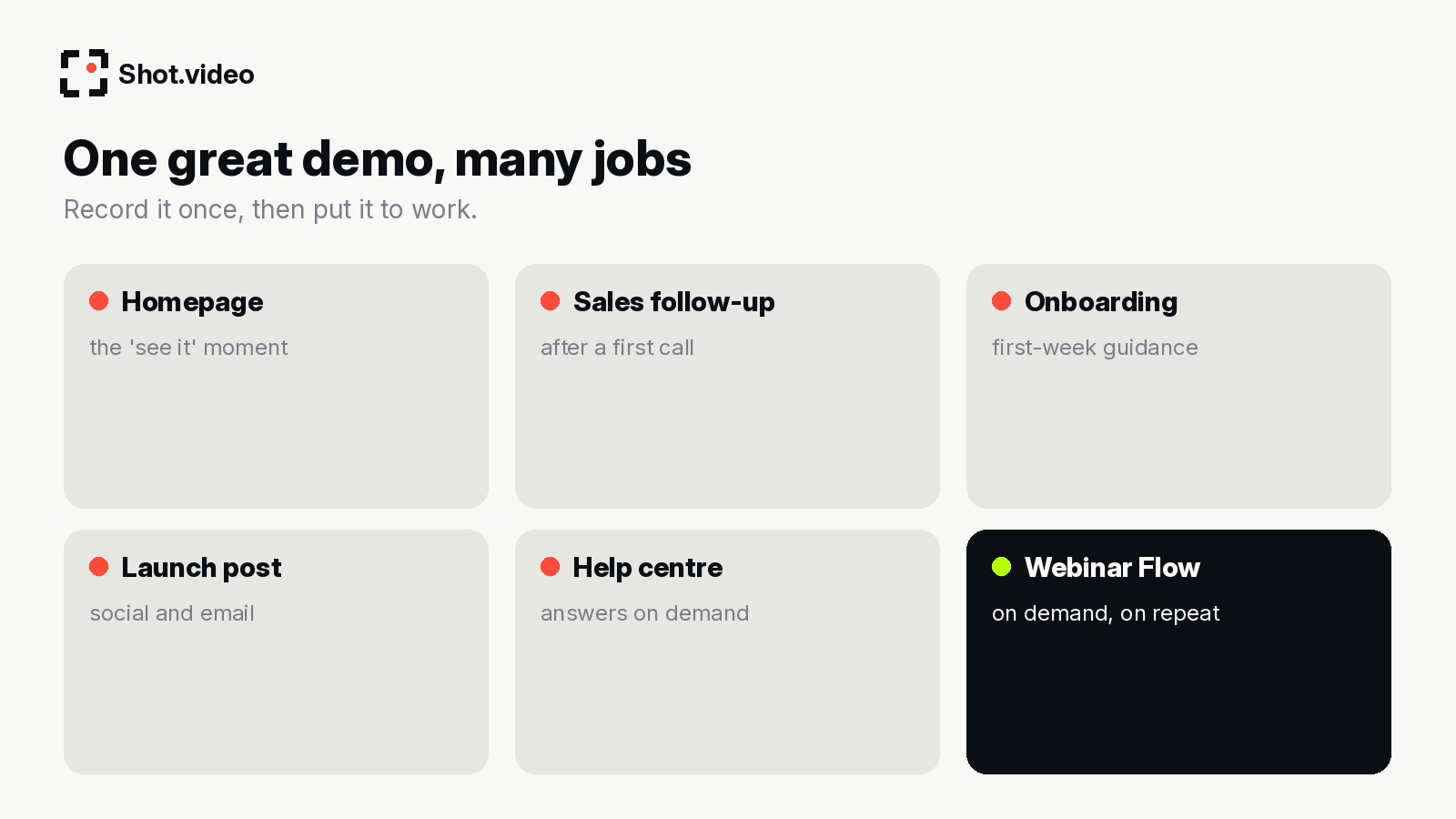
A demo that looks this good deserves more than one home. Put it on the homepage, link it in follow-up emails, use it in onboarding and help articles, and cut it down for launch posts. For sales teams, the strongest use is often to run it on demand: Webinar Flow runs your best pitch on repeat so new prospects can watch the moment they are interested. Shot removes the production bottleneck; Webinar Flow puts the presentation to work. Read record your best pitch once, run it on repeat for how the two fit together.
If the demo sits on a landing page, test it. PageTest.ai's guide on search intent and conversions is a good primer on matching the page to what visitors came for.
Ideas and tips
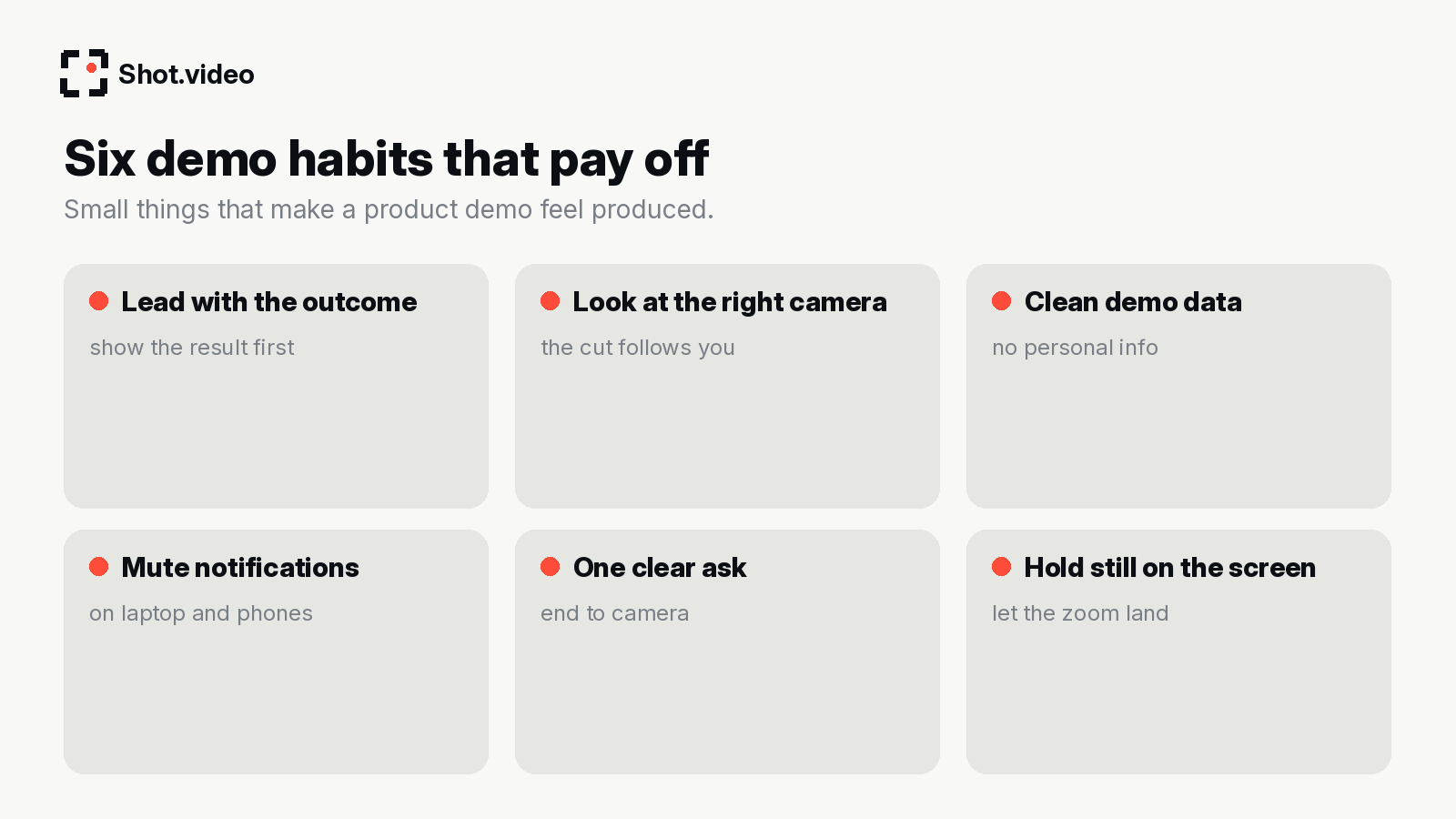
- Show the outcome in the first 20 seconds. Then explain how you got there.
- Use the close-up for "aha" moments. Hardware clicks, a printed output, a phone notification arriving.
- Record a library, not a single video. One overview plus short feature demos with the same setup look consistent.
- Re-record when the product changes. When the setup is already in place, refreshing a demo is quick, so old UI does not linger.
Mistakes to avoid
- Starting with a logo and an agenda instead of the problem.
- Demoing every feature. Pick the three that matter to this viewer.
- Moving the mouse constantly, which gives zooms nothing to settle on.
- Using portrait phones. Landscape matches the final frame.
- Forgetting the ask. Every demo should end with one clear next step.
FAQ
How long should a product demo video be?
As long as the job needs. Homepage demos are usually short and focused on one outcome; sales demos can run longer because the viewer is already interested.
Do I need extra cameras?
No. Your laptop plus a phone gives you two angles. Shot.video supports two to five phones, connected by QR code, with no app to install.
Can I fix the AI's choices?
Yes. The AI makes a first edit, and every cut, zoom and B-roll choice stays editable.
Can I use my own B-roll?
Yes. Approve suggested B-roll or upload your own clips and images.
Related: multi-camera recording guide · tutorial and walkthrough videos · business and team update videos
Make your next video your best one yet
Your laptop. Your phone. Your screen. One recording. AI does the editing. Scan a QR code to add phones as extra cameras (no app to install), press record once, and get a polished, multi-angle first edit with smart cuts, zooms and B-roll. Get started free with Shot.video.