Business and team update videos: clearer training and internal comms
By Ian Naylor ·
Drafted with AI assistance, then fact-checked and edited by Ian Naylor before publishing.

Team update videos have quietly replaced a lot of meetings. Product updates, leadership messages, training sessions, onboarding for new starters and process walkthroughs all work better as something people can watch when it suits them. The catch: most of these videos are a webcam and a slide deck, and they get skimmed or skipped. This guide is about making clearer training, product updates and internal communications, using the laptop and phones your team already has.
Who makes business videos
- Founders and leaders sharing strategy, results and changes.
- Product teams explaining what shipped and why.
- Enablement, HR and L&D running training and onboarding.
- Operations and IT documenting processes.
- Customer success recording updates and training for customers.
The pain points
- Nobody watches past minute two. A static talking head over slides feels like a meeting you could not escape.
- Training does not stick. Hands-on processes are hard to follow from slides.
- Production is a bottleneck. Internal comms teams cannot edit every manager's video.
- Inconsistent quality. Every team records differently, so the library looks messy.
- The same session, delivered again and again. Trainers repeat the same onboarding live for every cohort.
The updates worth filming properly
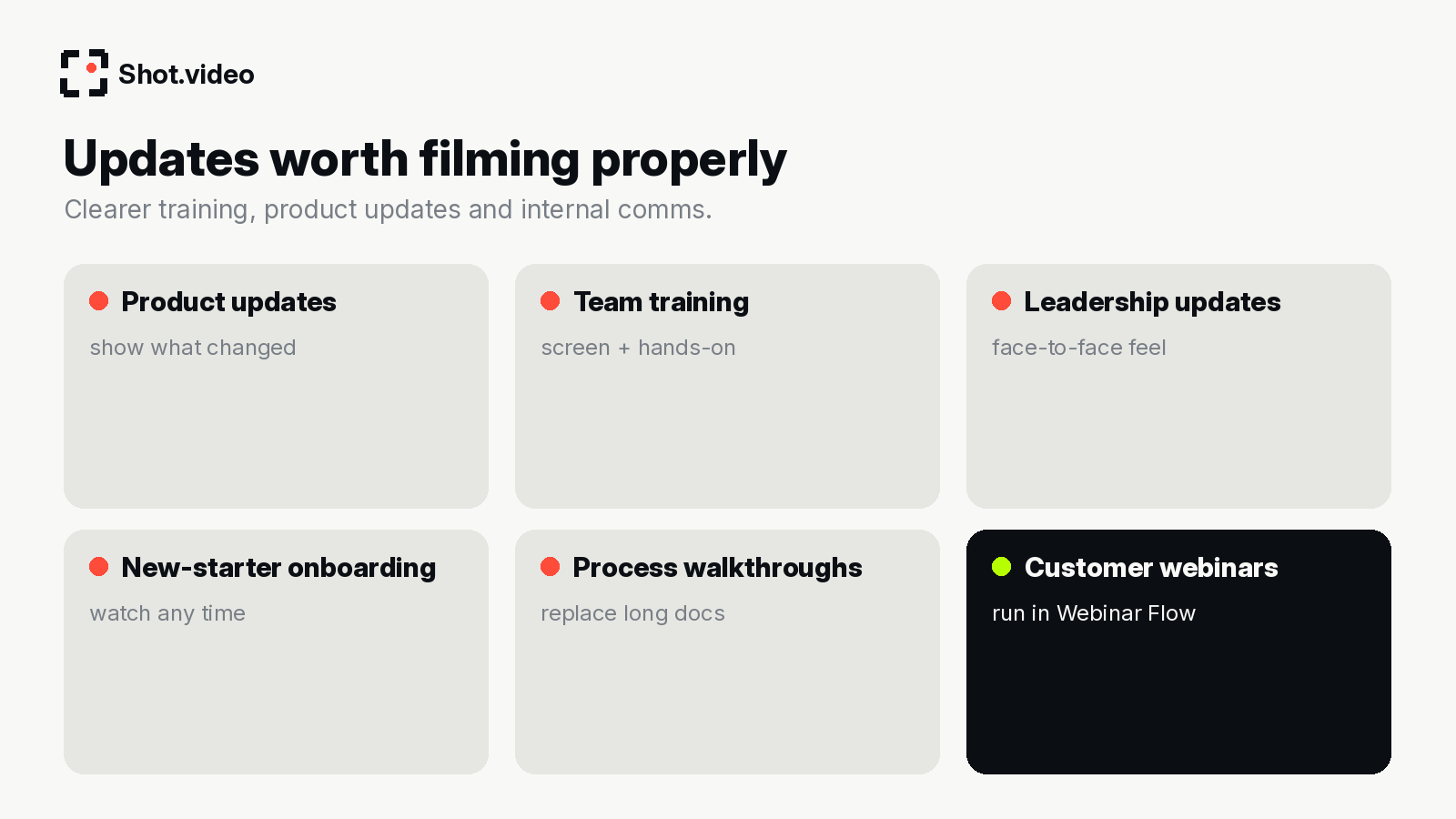
Not everything needs multiple angles. A quick heads-up can stay a quick heads-up. But anything people will rewatch, rely on or judge you by, such as training, onboarding, quarterly updates or a product launch for customers, is worth recording properly once.
A desk or meeting-room setup
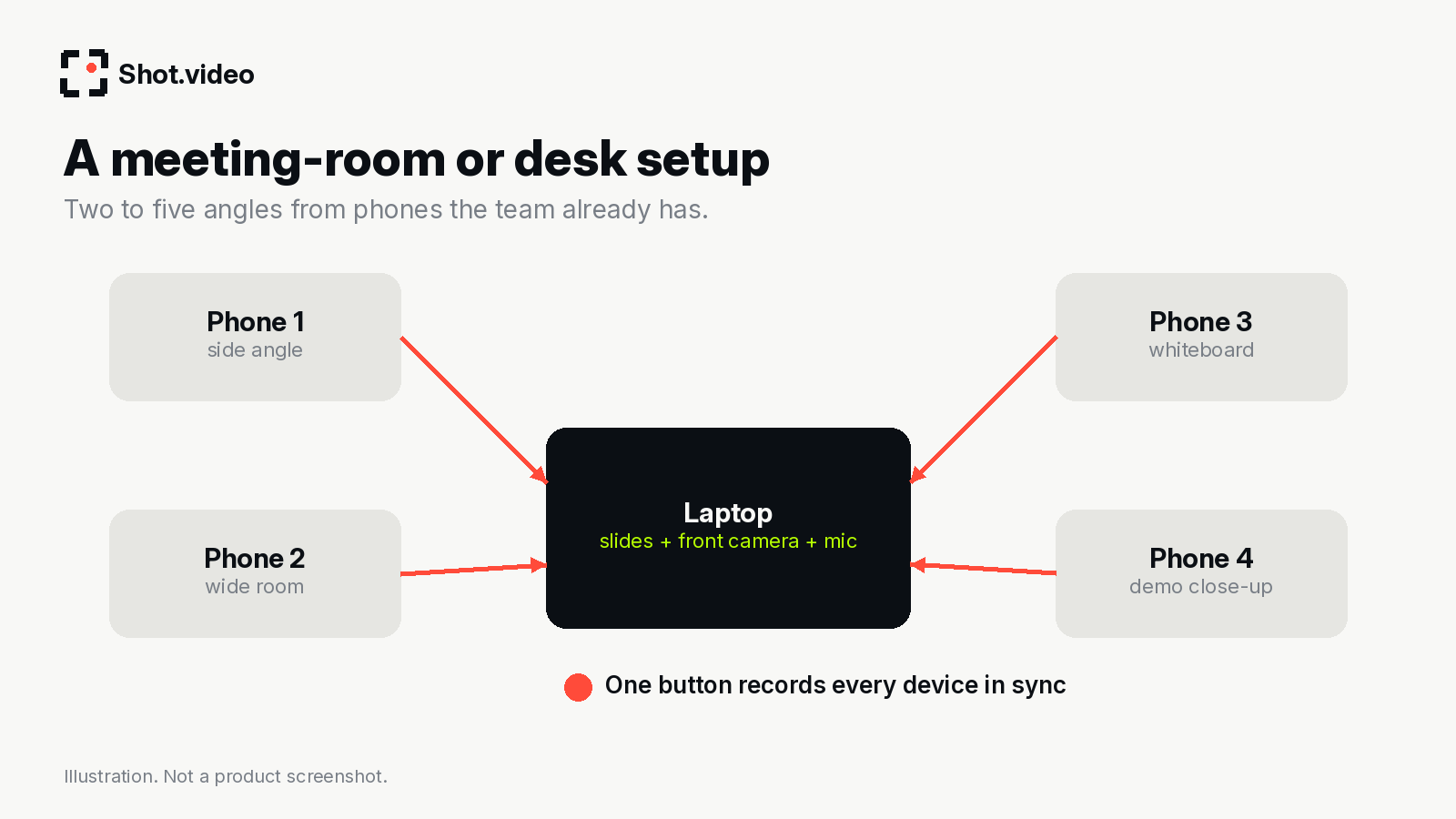
- Laptop: slides or product screen, front camera, mic.
- Side-angle phone: an interview feel that makes a leadership update less formal.
- Wide phone: useful if two people present together.
- Whiteboard phone: for planning sessions and explanations.
- Close-up phone: for hardware, paperwork or anything physical in a process.
Phones join by scanning a QR code, with no app to install, so colleagues' phones work fine and IT has nothing to deploy. One button records every device in sync.
Here is what Shot.video actually does, in plain terms. You record your screen, laptop camera and microphone, and add two to five phones as extra cameras by scanning a QR code. Nothing is installed on the phones; their browser does the recording. One button records every device in sync. Afterwards, AI builds a first edit: it cuts to the camera you are looking at, glides in on the part of the screen that is changing and holds there, and suggests B-roll cutaways you approve, trim, crop or move. You can also upload your own B-roll. Every choice stays editable.
How the AI edit helps internal comms
- Auto-switching keeps it human. Speak to the side camera for the story and the edit goes there; turn to the screen to show numbers and it zooms in on what matters.
- Zooms make dashboards readable. Charts and tables are unreadable at full-screen size on a laptop in a small window.
- Punch-ins for the headline. "Here's the one change that affects you" deserves emphasis.
- B-roll for context. Approve suggestions or upload your own: team photos, office shots or product clips.
Time saved: a worked example
Illustrative, not measured: a typical training video might go through a comms or L&D person for editing, adding zooms and cutting between a slide recording and a separate camera. That queue is the bottleneck. When the presenter can record once and get a polished first edit, the queue shrinks to a quick review, and more teams can publish good-looking videos without waiting.
From update to watched video
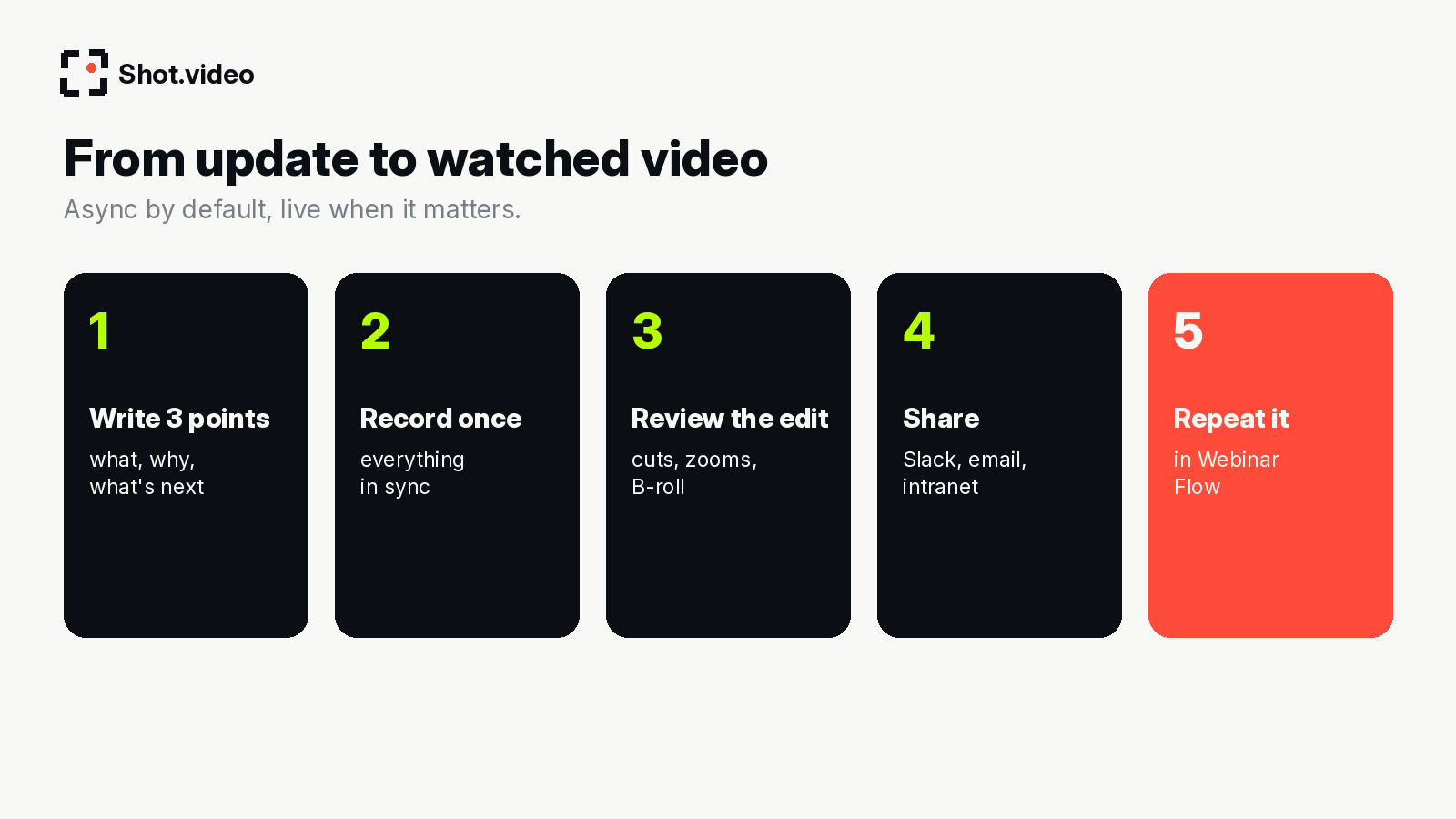
- Write three points: what changed, why, and what people should do now.
- Set up and scan the QR codes for any phones.
- Record once. Look at the camera for people, the screen for proof.
- Review the first edit and adjust anything.
- Share in Slack, email or your intranet.
- Repeat sessions on demand. For training or customer sessions delivered repeatedly, Webinar Flow can run your best recording on demand, on repeat, so you stop delivering the same session live every week.
Tips for internal video
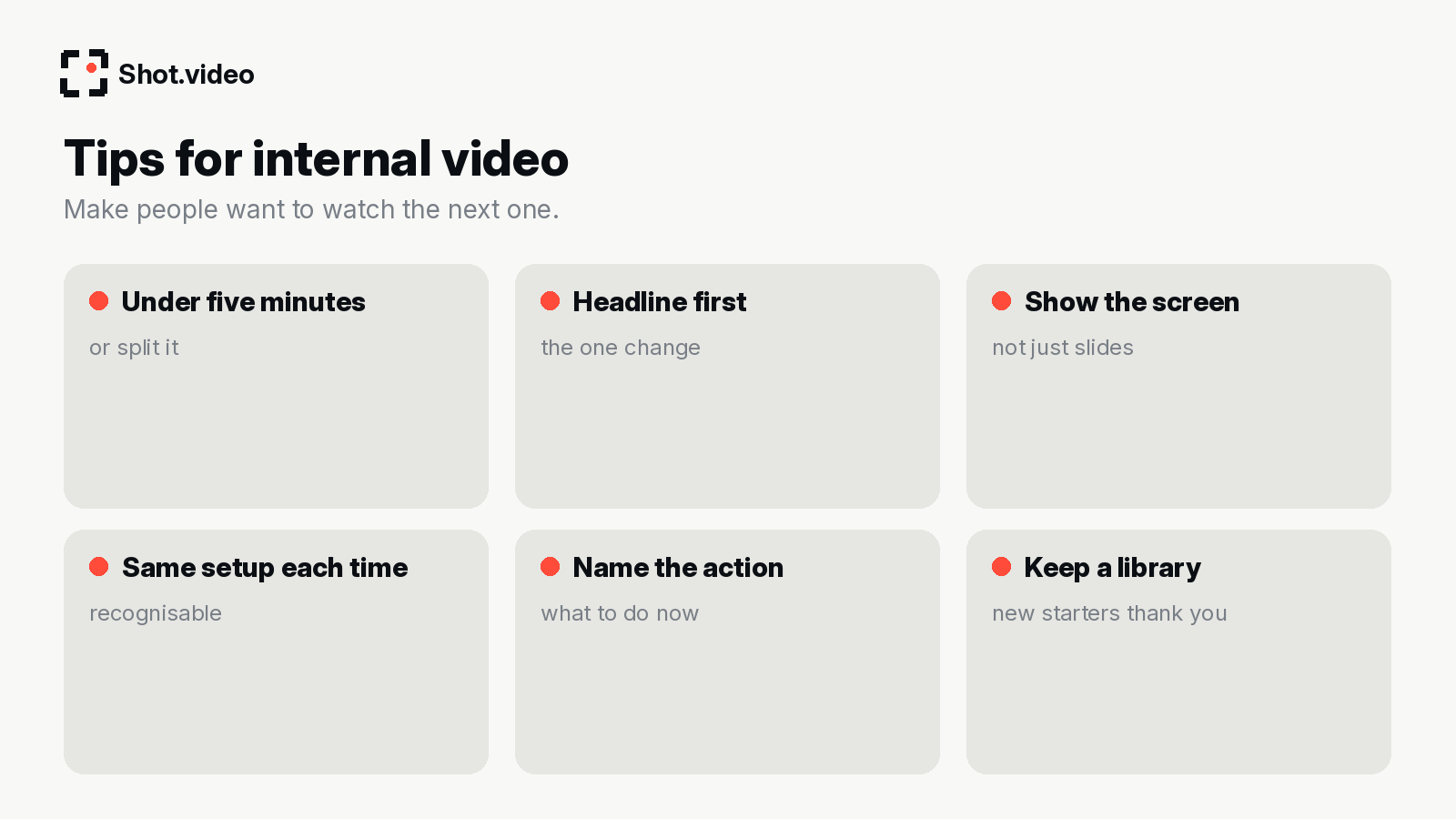
- Keep updates short, or split them into chapters.
- Lead with the headline, then the detail.
- Use the same setup for recurring updates so they are recognisable.
- Build a library of training and process videos; new starters will thank you.
- Ask for one action at the end.
Mistakes to avoid
- Reading slides aloud.
- Recording in a room with a window behind you.
- Leaving notifications on during recording.
- Making every video an hour-long all-hands. Short and frequent beats long and rare.
- No owner for the library, so old training lingers after processes change.
A worked example: a monthly product update
Illustrative only. A product lead used to present the monthly update live to three time zones, three times. Now she writes three points on Monday: what shipped, why it matters, and what each team should do. She records on Tuesday with the laptop for slides and the product screen, a side-angle phone for the story and a close-up phone for a new hardware accessory. The first edit cuts to her when she explains the why, zooms into the new feature on screen and cuts to the close-up when she picks up the accessory. She reviews, adds a team photo as B-roll, and shares the link in Slack on Wednesday morning. Everyone watches when it suits them, and the live call becomes a short Q&A for the people who need it.
Training that people can rewatch
Training is where multi-angle recording earns its keep. A process that involves a screen and a physical step (scanning a document, setting up a device, packing an order) is far easier to follow when viewers can see both. Record each process once, keep it under a few minutes, and store it in a library organised by role. New starters can watch at their own pace, and managers stop repeating the same session for every cohort.
Governance without friction
- Name an owner for the video library who reviews it after each process or product change.
- Use a simple template: title, three points, one action, the date recorded.
- Keep the setup consistent so videos from different teams look like they belong to the same company.
- Decide what stays live. Some updates are better as conversations; record the explanation and save the live time for decisions.
More tips: making internal video a habit
Pick a recording rhythm
Recurring updates work best on a predictable schedule, such as a weekly product note, a monthly leadership update and a quarterly results video. When people know when the next one is coming, they watch. Book a short recording slot in your calendar the day before the update goes out, so there is time to review the first edit without rushing.
Write for the ear, not the slide
Slides are prompts, not a script. Write three short sentences per point the way you would say them to a colleague, then talk through them. If a sentence is hard to say out loud, it will be hard to follow on video too.
Use the second angle deliberately
A side-angle phone is the easiest upgrade for leadership updates: turn to it for the story and back to the laptop for the numbers. Because the AI cuts to the camera you are looking at, a simple turn of the head gives you a two-camera edit without any editing.
Make dashboards readable
Before recording, zoom your browser in, hide unrelated panels and open the exact view you will discuss. Then hold the mouse still on the chart you are talking about so the zoom can settle on it.
Caption and title everything
Many people watch internal videos with the sound off between meetings. Add captions where your sharing tool supports them, and give every video a plain title with the date, such as "Product update, October: new reporting".
Ask for feedback
End every few updates with a quick question: was this useful, too long or too short? Adjust the format based on what people tell you rather than guessing.
FAQ
Do employees need to install anything?
No. Phones join by QR code and record in the browser.
Can two people present together?
Yes: add a wide phone and a side angle each. The AI cuts to the camera being looked at.
How long should a team update video be?
Short enough to watch between meetings. Lead with the headline and split longer updates into chapters or separate videos.
Do we need a quiet studio room?
No. A quiet corner with light in front of you is enough. Avoid windows behind you and noisy open-plan areas, because the laptop mic plays under every shot.
Can someone else record on their phone for us?
Yes. A colleague can scan the QR code and their phone becomes an extra camera, with no app to install.
Can we use our own branded B-roll?
Yes. Upload your own clips and images, or approve suggested B-roll.
Related: course video creation · product demo videos · record your best pitch once · the video-led GTM stack
Make your next video your best one yet
Your laptop. Your phone. Your screen. One recording. AI does the editing. Scan a QR code to add phones as extra cameras (no app to install), press record once, and get a polished, multi-angle first edit with smart cuts, zooms and B-roll. Get started free with Shot.video.