Multi-camera recording without extra hardware: the complete guide
By Ian Naylor ·
Drafted with AI assistance, then fact-checked and edited by Ian Naylor before publishing.
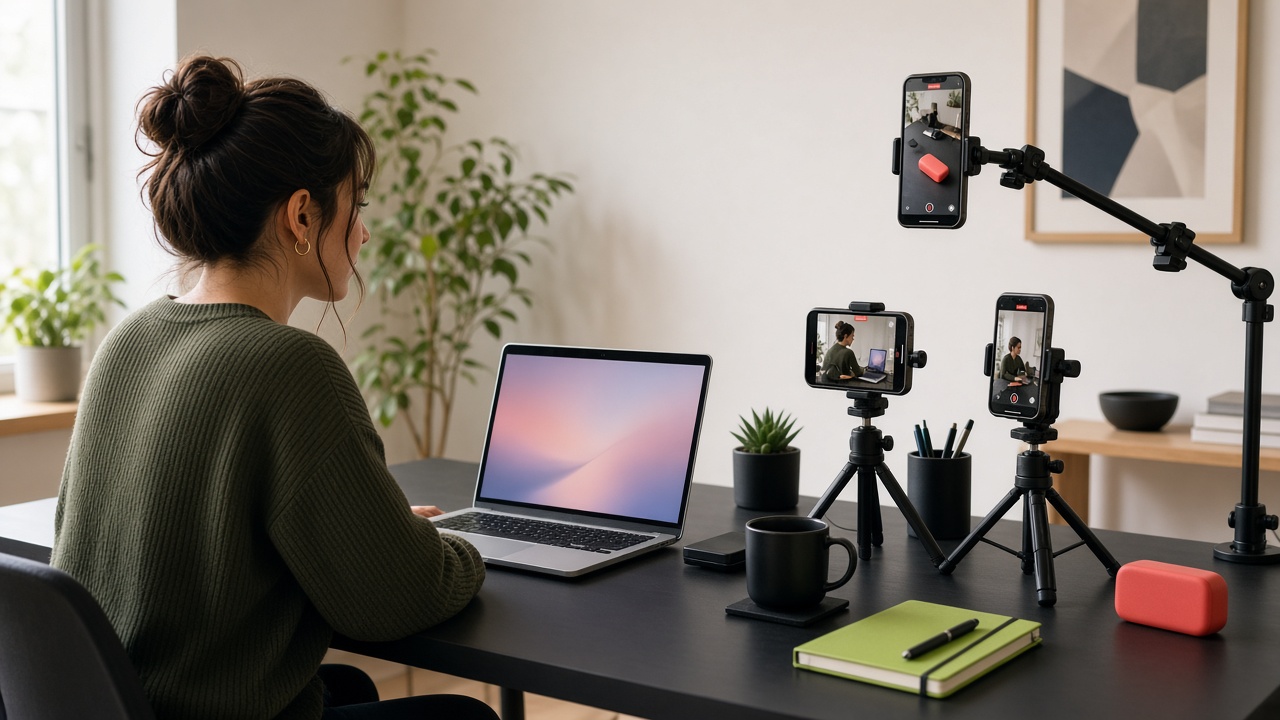
Multi camera recording means capturing the same moment from more than one angle at the same time, then cutting between them so the video feels alive. A face-on shot, a close-up of your hands, and your screen, all in sync. It is the single biggest difference between a "talking into a webcam" video and one that looks produced.
The traditional way needs real kit and real time. This guide covers the angles worth recording, the three ways to do it (hardware, desktop software, browser), and a step-by-step workflow that uses only a laptop and a phone or two.
Why multiple angles make videos better
- Attention. A change of shot resets the viewer's attention without you having to do anything different.
- Clarity. Some things are better shown than described: hands on a keyboard, a product in your hands, a sketch on paper.
- Editing cover. A second angle lets you hide a cut. Trim a stumble on the main camera and land on the other angle, and nobody notices the jump.
- Perceived quality. Viewers associate angle changes with "produced" content, the way interviews and cooking shows are filmed.
The angles worth recording
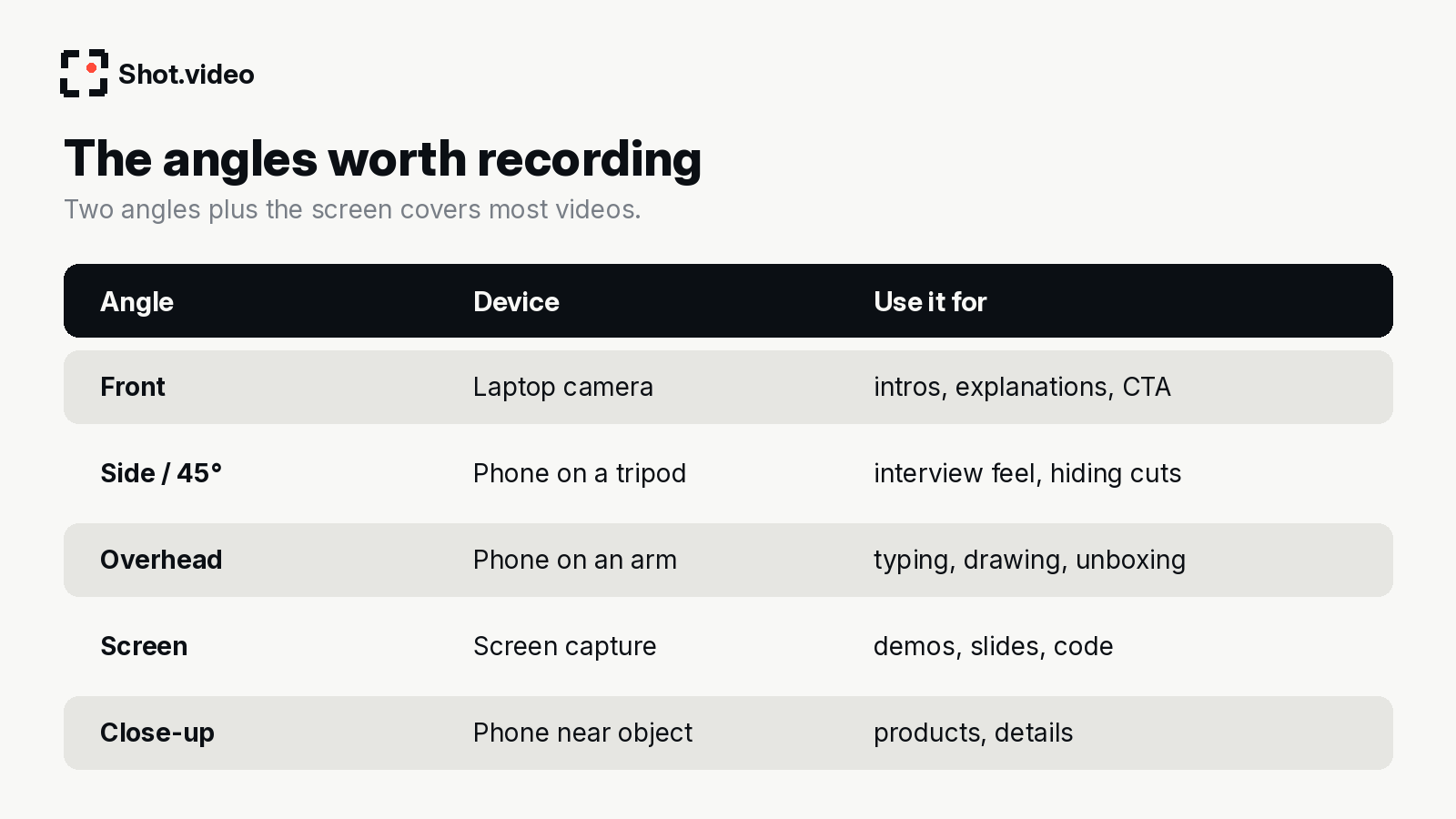
| Angle | Best device | Use it for |
|---|---|---|
| Main (face-on) | Laptop camera or a phone at eye level | Intros, explanations, calls to action |
| Side / 45° | A phone on a shelf or small tripod | Interview feel, hiding cuts |
| Overhead | A phone on an arm or mount above the desk | Typing, drawing, unboxing, crafts, cooking |
| Screen | Screen capture | Software demos, slides, code |
| Close-up / product | A phone near the object | Hardware, physical products, details |
Two angles plus the screen covers most tutorials and demos. See our overhead camera setup guide if your hands are part of the story.
Three ways to record multiple cameras
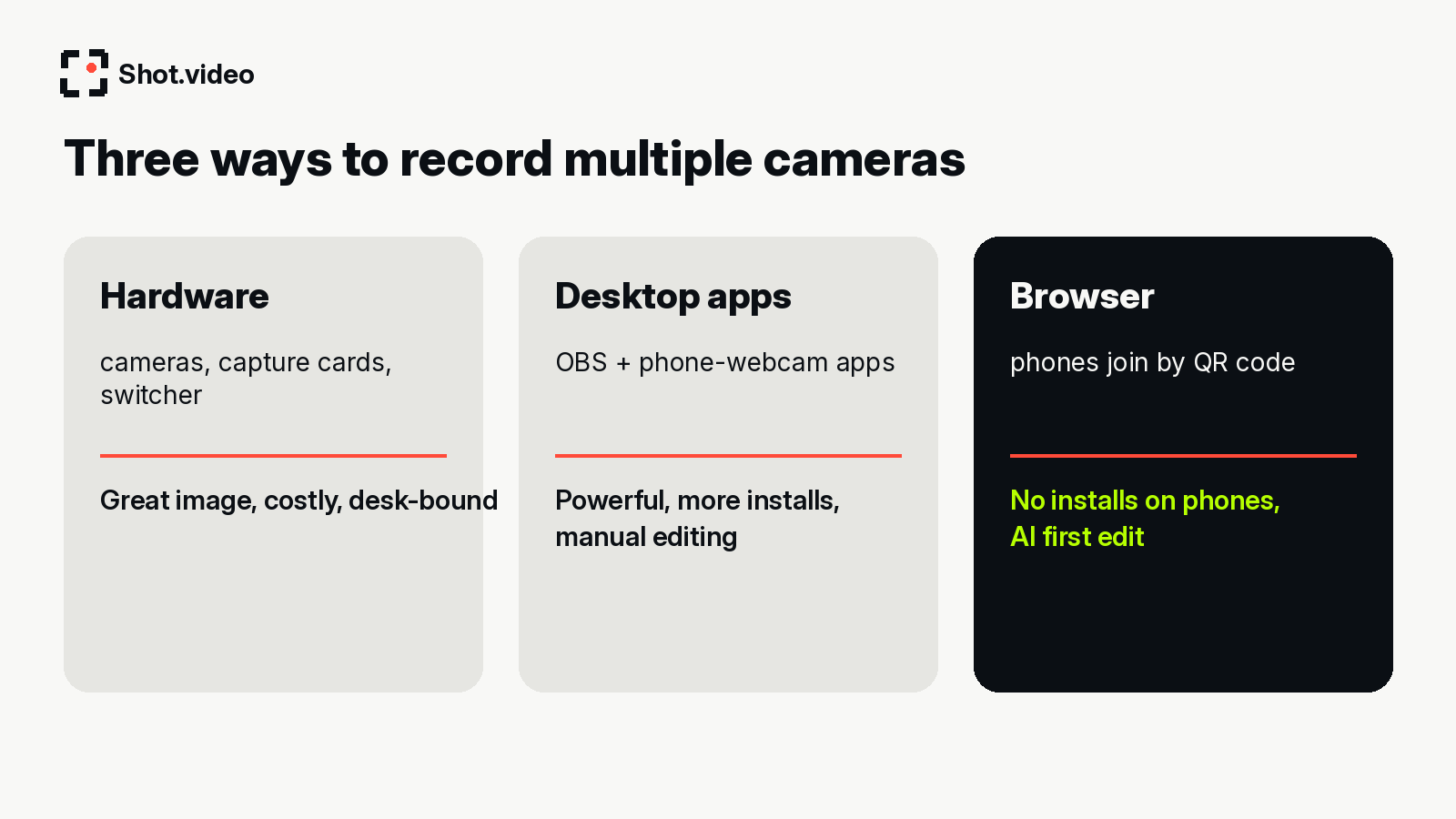
1. Hardware: cameras, capture cards and a switcher
Dedicated cameras feed a capture device or switcher. Image quality can be excellent, but you pay for every camera, cable and adapter, and you are tied to one desk.
2. Desktop software plus phone-as-webcam apps
Tools such as OBS Studio are free and powerful. To use a phone as a camera you usually add an app on both ends. For example, Iriun asks you to install its webcam software on Windows, Mac or Linux and download its app to your phone. Camo offers desktop downloads for macOS and Windows. Apple's Continuity Camera works with one iPhone and one Mac at a time, and needs iOS 16 or later and macOS Ventura or later. These routes work, but each extra camera means more installs and more settings, and you still edit the angles by hand afterwards.
3. Browser-based multi-camera recording
The newest approach skips installs on the extra devices.
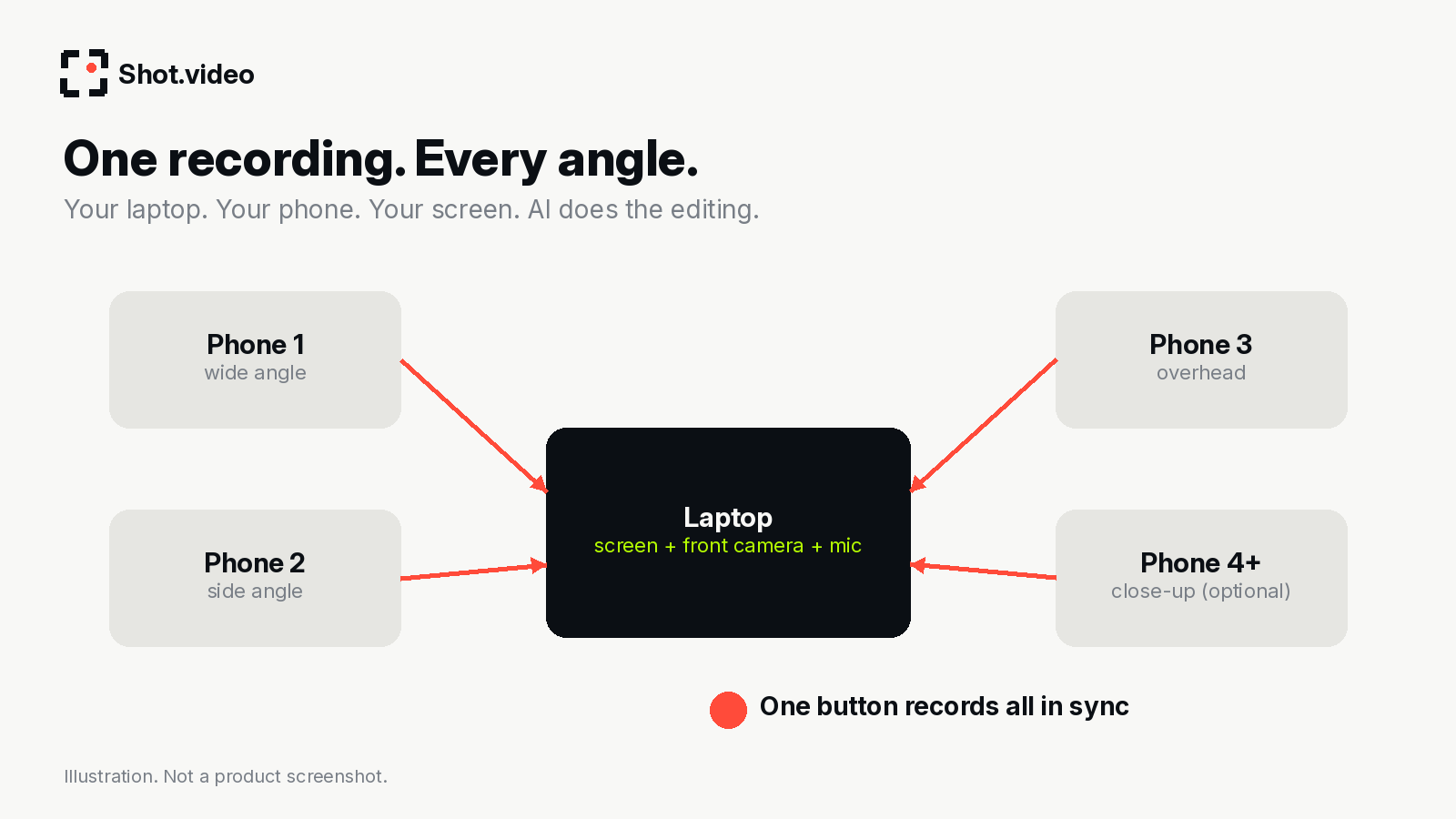
Shot.video describes itself as "Studio-quality videos. Without the studio." You record your screen, laptop camera and multiple phones at once. Any phone becomes a camera by scanning a QR code, with no app to install. Then AI cuts between angles (including when you look into a different camera), suggests B-roll you approve, and glides in on the part of the screen that is changing. Every choice stays editable. (source: shot.video)
In practice you can scan multiple phones for two to five angles (say a wide shot, a side angle and an overhead), while the laptop gives you the screen, front camera and mic. One button records everything in sync, and you can upload your own B-roll as well as use AI suggestions. The idea: multi-camera production as easy as recording a Loom. Your laptop. Your phone. Your screen. One recording. AI does the editing.
Step by step: a two-camera plus screen recording
- Plan the shots. Write three or four beats: intro to camera, the demo on screen, a hands-on or close-up moment, and a closing call to action.
- Place the devices. Laptop camera at eye level. A phone overhead or at 45°. Keep the lens clean and the phone in landscape.
- Light the face, not the background. A window in front of you beats any lamp behind you.
- Connect the phones. In Shot.video, scan the QR code with each phone you want to use. Read how to use your phone as a second camera for detail.
- Record once. Start a single recording that captures the cameras, screen and audio together, in sync.
- Look where you want the viewer to look. Turn to the overhead camera when you show your hands. Smart cuts move between angles, including when you look into a different camera.
- Review the first edit. Check the cuts, zooms and any suggested B-roll. Approve, trim, crop or move them. Every choice stays editable.
Syncing: the part that used to hurt
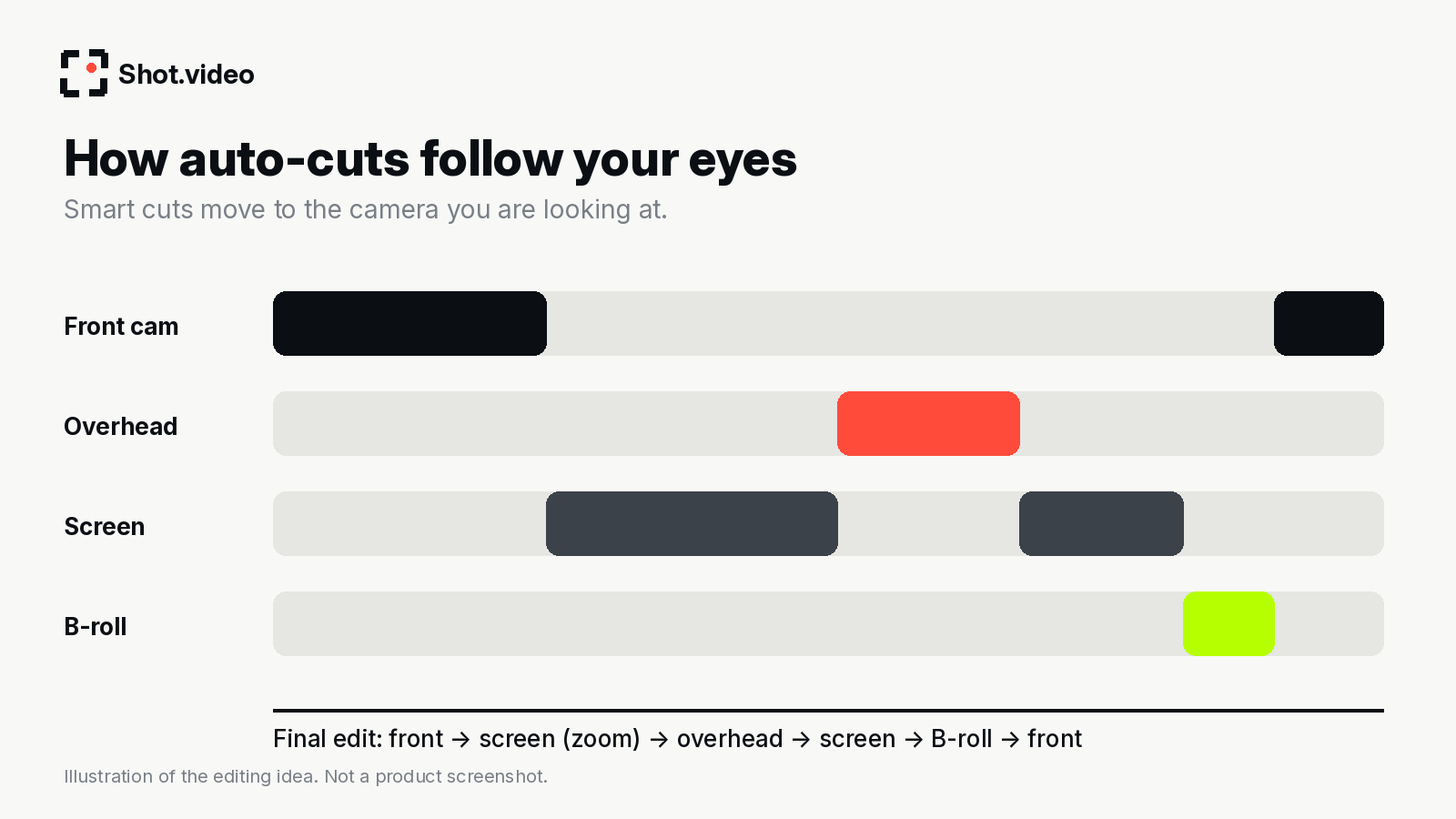
With separate recorders you line clips up by a clap or by audio waveforms. When everything is recorded in one session, the angles are already together, and your laptop mic plays under every shot, lined up with each camera.
Common mistakes
- Too many angles. Two cameras plus a screen is plenty to start.
- Phones in portrait. Landscape matches the final frame.
- Forgetting the overhead angle shows your desk. Tidy it.
- Ignoring audio. Viewers forgive soft video, not bad sound. Record somewhere quiet.
What to read next
- How to record a product demo video that people finish
- Best Loom alternatives in 2026 for multi-angle video
- Record your best pitch once and run it on repeat
FAQ
Do I need special cameras for multi camera recording?
No. A laptop camera and one phone already give you two angles. More phones add more.
Do the phones need an app?
Not with Shot.video: any phone becomes a camera by scanning a QR code, with no app to install.
Can I still edit manually?
Yes. The AI builds a first edit and every choice stays editable.
Make your next product video your best one yet. Scan a QR code to connect a phone, record your screen, laptop camera and phones together, and let AI put together a polished first edit with smart cuts, zooms and B-roll. Get started free with Shot.video.
Sources
- Shot.video (checked 29 October 2026)
- OBS Studio (checked 29 October 2026)
- Iriun Webcam (checked 29 October 2026)
- Camo by Reincubate (checked 29 October 2026)
- Apple Continuity Camera support (checked 29 October 2026)