Tutorial and walkthrough videos: screen capture plus extra angles
By Ian Naylor ·
Drafted with AI assistance, then fact-checked and edited by Ian Naylor before publishing.
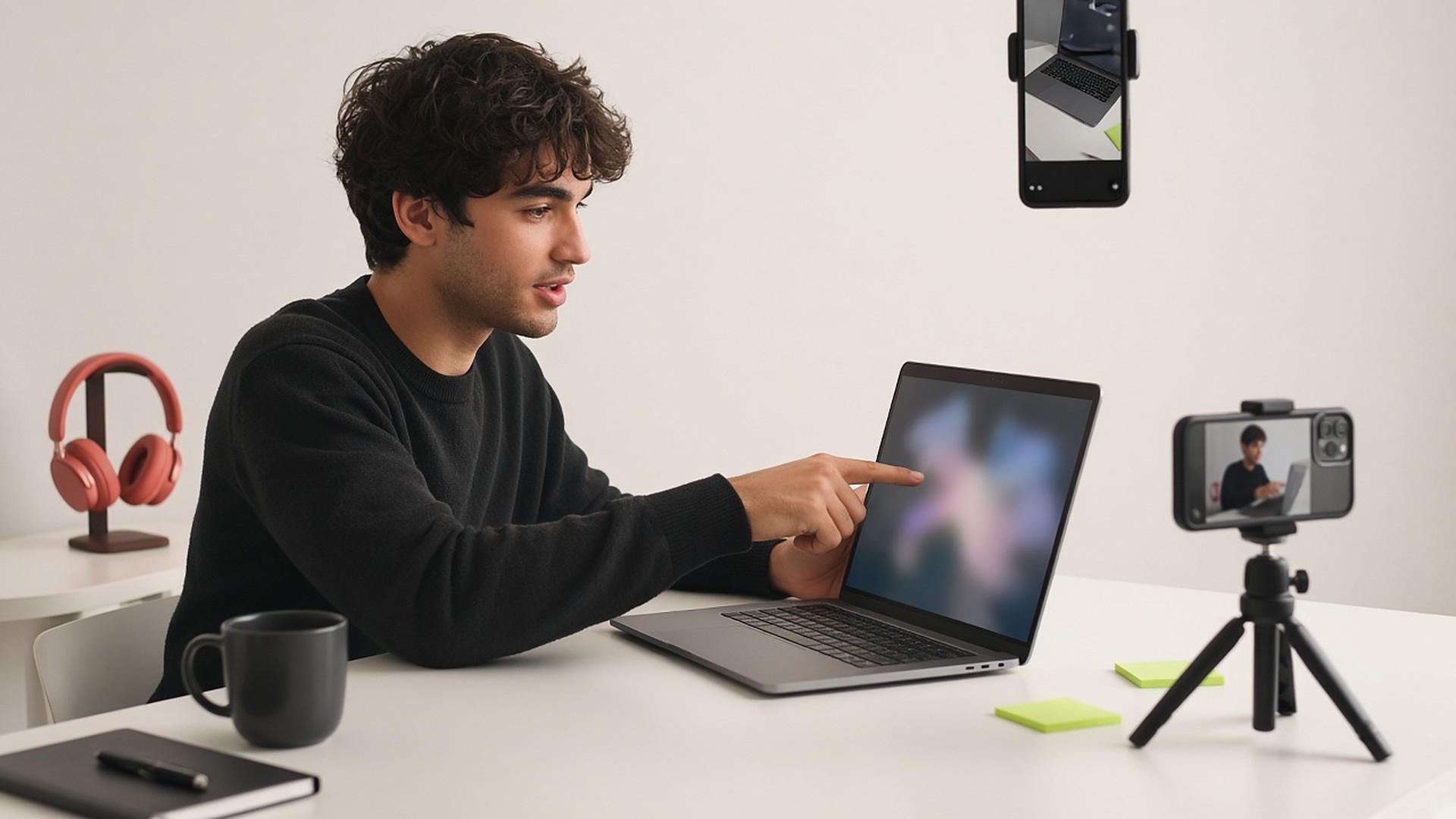
Tutorial videos have one job: get the viewer from "how do I...?" to "done". Whether you are explaining software, a process, a workflow or a piece of kit, clarity beats polish. But clarity is exactly what a plain screen recording struggles with: the important click is tiny, the shortcut is invisible and the narrator is a voice with no face. This guide covers how to explain software or a process with screen capture and extra camera angles, and how automatic zooms and cuts make every step easy to follow.
Who makes tutorials, and what frustrates them
Support teams, customer success, developer advocates, YouTubers, internal IT, educators and SaaS founders all make walkthroughs. The frustrations are similar:
- The click that matters is tiny. Viewers on laptops, and especially phones, cannot read the menu you are using.
- Keyboard shortcuts are invisible. "Press this" means nothing if nobody can see your hands.
- Manual zooms are slow. Adding a zoom for every step in an editor takes longer than recording.
- Tutorials go out of date. When the UI changes, you need to re-record quickly, so heavy editing is a liability.
- Faceless videos feel cold. A short shot of the presenter builds trust, but a permanent webcam bubble covers the UI.
Zooms that follow the action
The single biggest improvement to a tutorial is making the active part of the screen readable. Shot.video's zooms and pans glide in on the part of the screen that is changing and hold there, instead of snapping in and out. Move to the menu, and the view follows; type into a field, and it holds on the field.
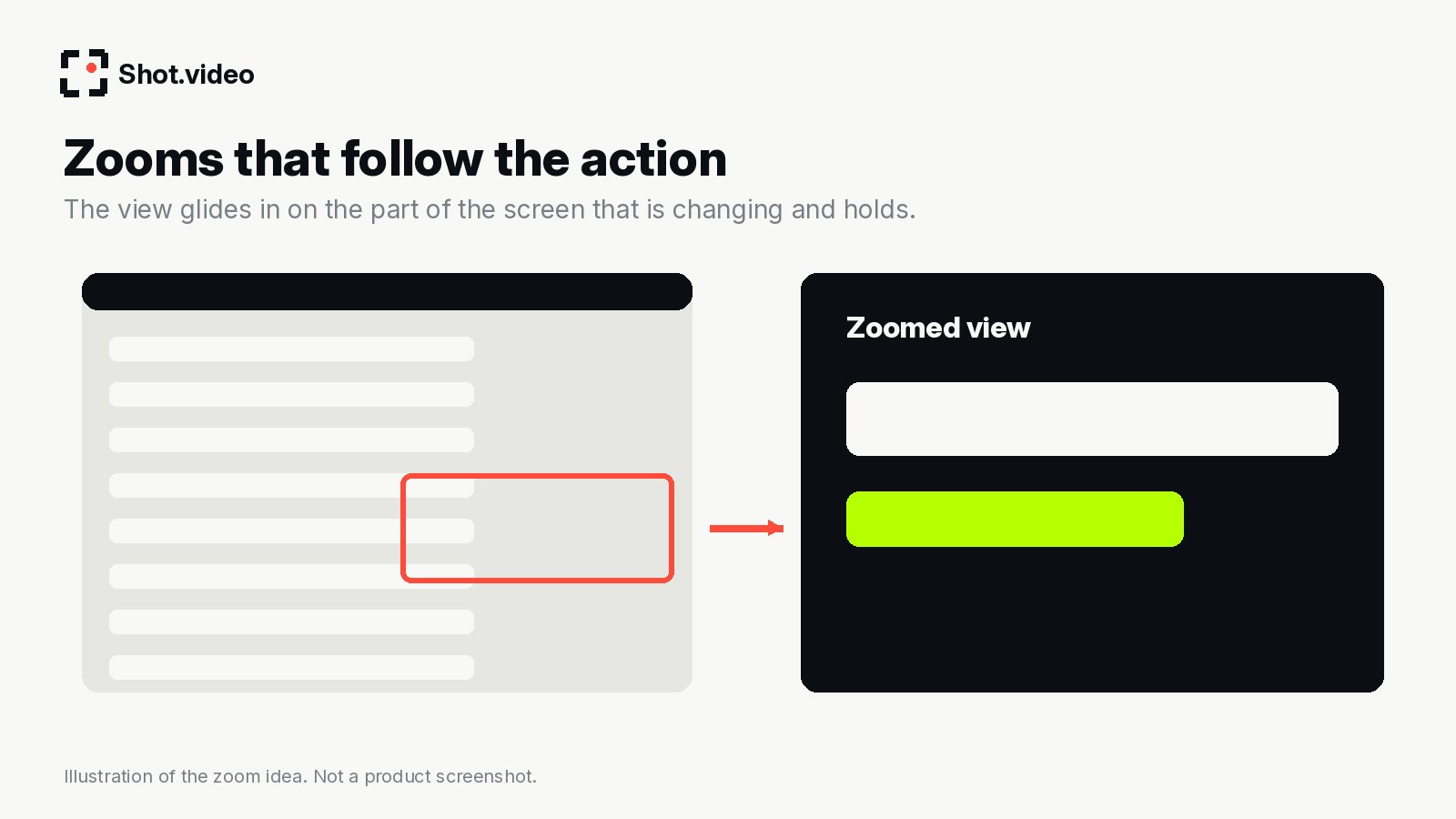
The tutorial setup
- Laptop: screen capture, front camera and mic.
- Overhead phone on the keyboard: makes shortcuts and hardware steps visible.
- Side-angle phone: a friendlier presenter shot for intros and summaries.
- Close-up phone: for a device, cable, router, or anything physical in the process.
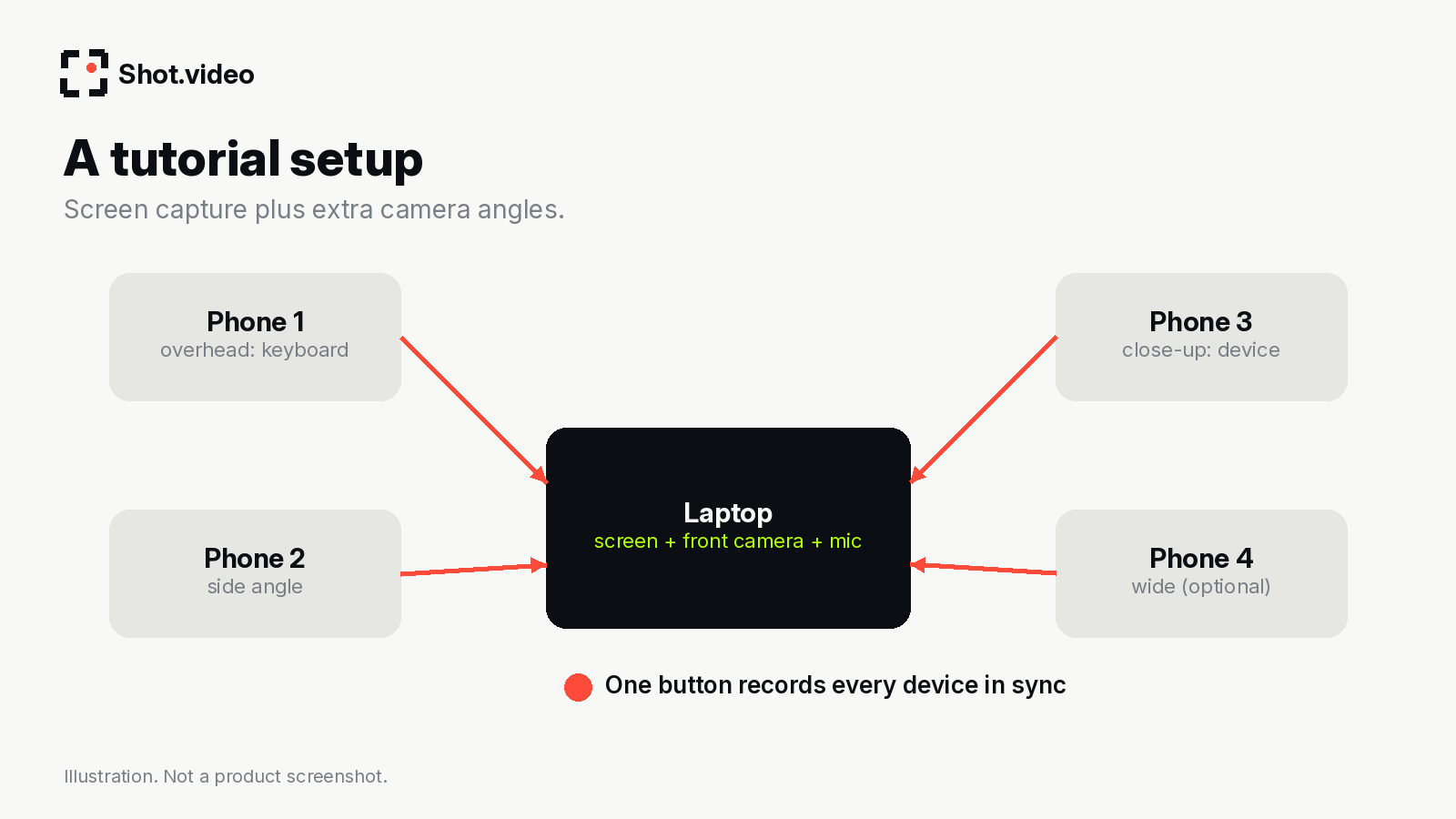
Each phone joins by scanning a QR code; nothing is installed. You can use two to five phones, and one button records them all with the screen and audio, in sync. See using your phone as a second camera and the overhead camera setup for placement.
Here is what Shot.video actually does, in plain terms. You record your screen, laptop camera and microphone, and add two to five phones as extra cameras by scanning a QR code. Nothing is installed on the phones; their browser does the recording. One button records every device in sync. Afterwards, AI builds a first edit: it cuts to the camera you are looking at, glides in on the part of the screen that is changing and holds there, and suggests B-roll cutaways you approve, trim, crop or move. You can also upload your own B-roll. Every choice stays editable.
How the AI edit helps a tutorial
- Screen for steps, face for context. Look at the camera to explain why; look at the screen to show how. The auto-switching follows.
- Overhead for shortcuts. Glance down at the keyboard and the overhead angle comes in, so viewers see which keys you press.
- Punch-ins for "don't miss this". A tighter frame on a warning or a key setting.
- B-roll for concepts. When you explain what an API, a webhook or a workflow is, a cutaway helps. Approve suggestions or upload your own diagram.
- Screen styling. Clean, browser frame or 3D showcase, depending on where the tutorial will live.
Time saved: a worked example
Illustrative, not measured: a typical walkthrough made the traditional way means recording, then adding a zoom keyframe per step, then a separate keyboard shot that has to be synced, then cutting between them. For a ten-step tutorial that is dozens of manual edits. With synced capture and automatic zooms and cuts, your job shrinks to reviewing the first edit and fixing anything you would do differently. That matters most when the product changes and you need to re-record a batch of tutorials quickly.
Step-by-step tutorial workflow
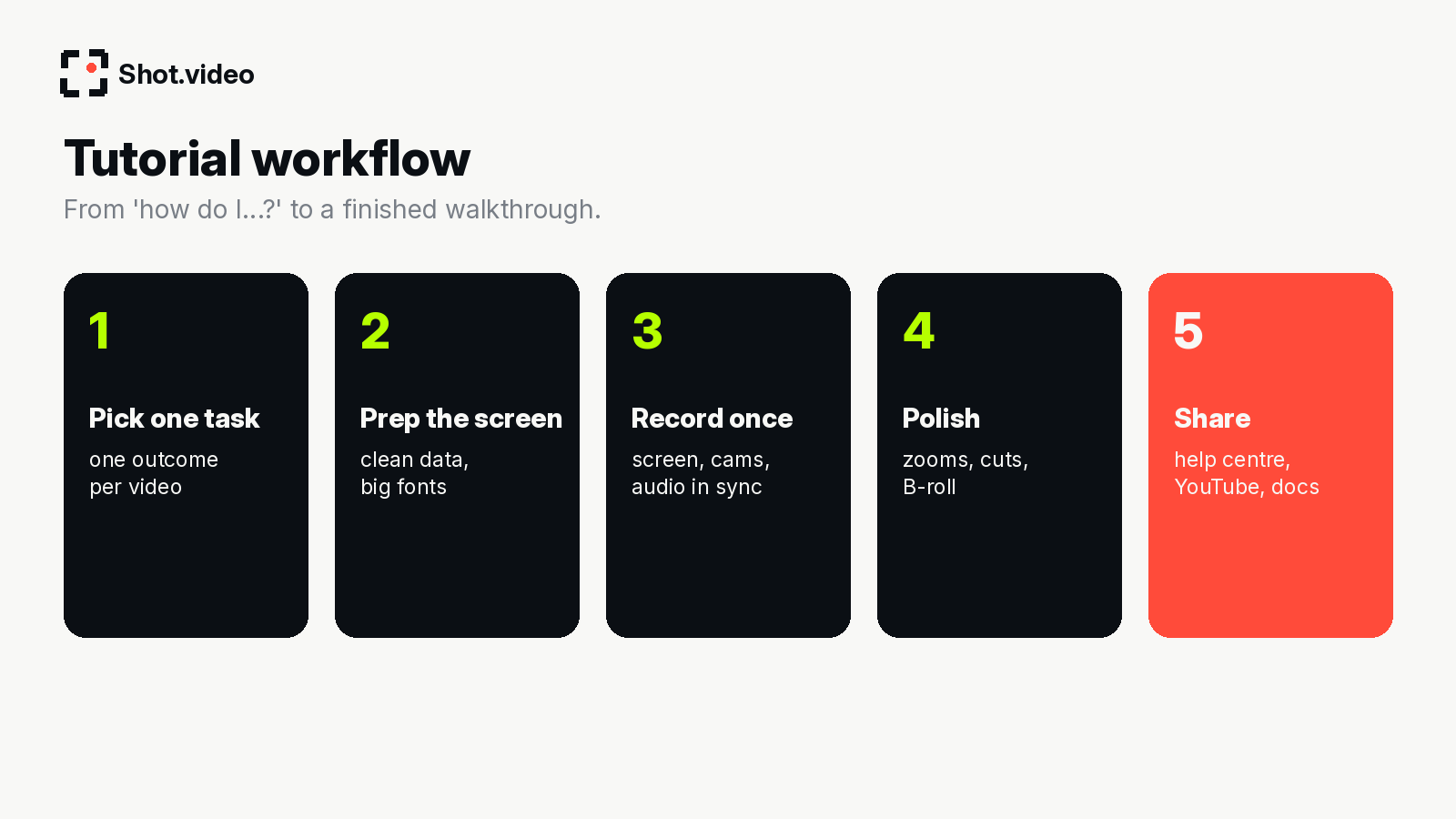
- Pick one task per video. "How to export a report" beats "Reporting overview".
- Prep the screen. Clean demo data, larger font size, close unrelated tabs, notifications off.
- Connect your phones and check the overhead frame covers the keyboard.
- Record once. Say the goal, show the result, then do the steps at a steady pace.
- Polish. Review zooms, cuts and B-roll; adjust anything.
- Share in your help centre, docs, YouTube or onboarding emails.
Tips that keep viewers watching
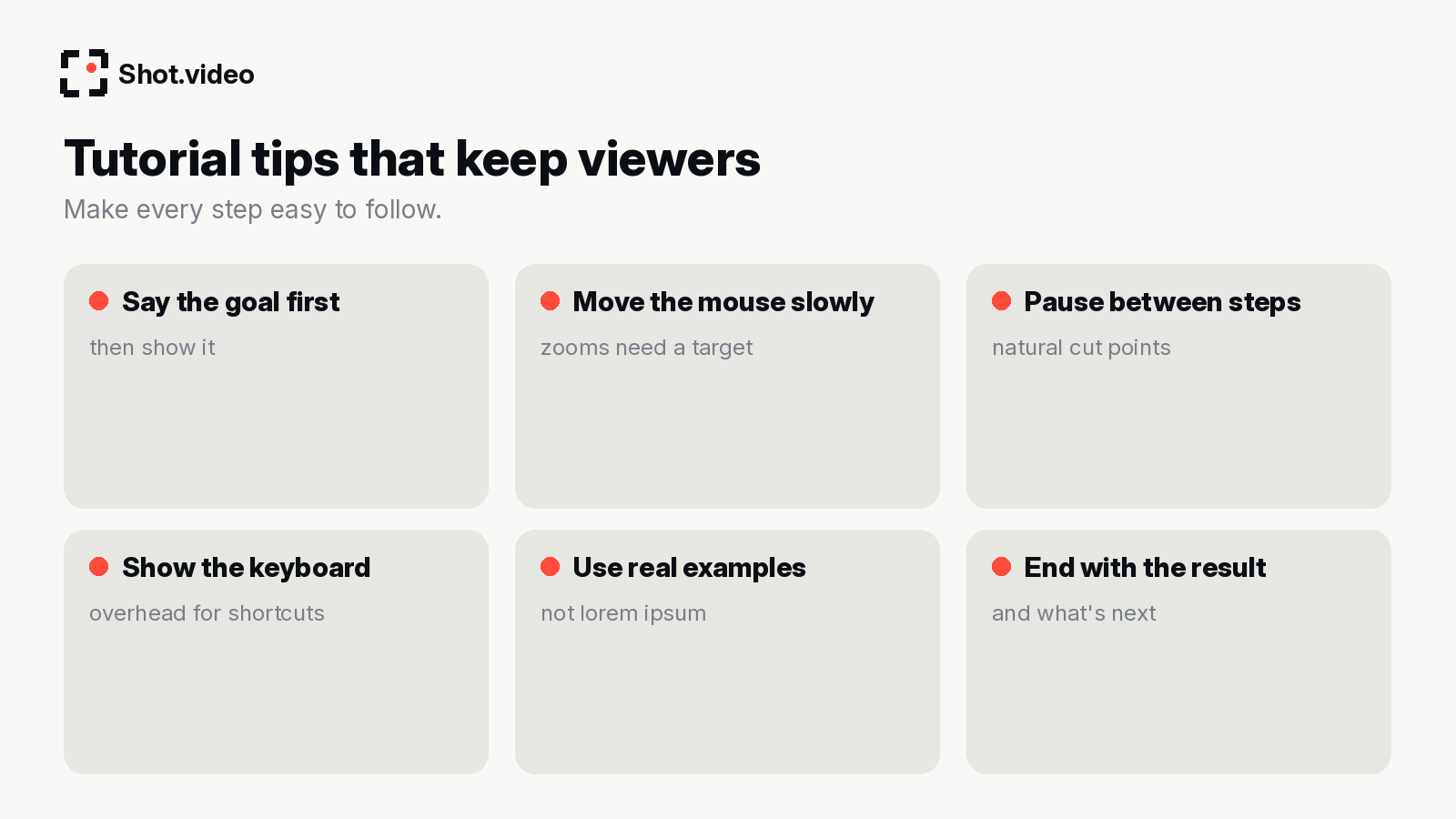
- Move the mouse slowly and deliberately. Zooms need a target to settle on.
- Pause for a beat between steps. Pauses are natural cut points.
- Use realistic data. Viewers follow along better when it looks like their world.
- Build a series. Short, single-task videos with the same setup are easier to update and search.
Mistakes to avoid
- Explaining three tasks in one video.
- A permanent webcam bubble covering the UI you are demonstrating.
- Shortcuts spoken but never shown.
- Rushing: speed is the enemy of clarity.
- Leaving out the result, so viewers do not know if they got it right.
Building a tutorial library that stays current
The real cost of tutorials is not the first recording; it is keeping them accurate. Every UI change can break a dozen videos. A few habits make updates painless:
- One task per video. When a single screen changes, you re-record one short video, not a long one.
- A fixed setup. Keep the overhead and side phones in the same place, so a re-recorded video looks identical to its neighbours.
- A naming convention. Title videos by task ("Export a report as CSV") so search and help centres find them.
- A review date. Note when each tutorial was recorded and check the oldest ones after every release.
A worked example: a support team's week
Illustrative only. Imagine a support lead who notices the same three questions keep coming in after a release. On Monday she writes three single-task outlines. On Tuesday morning she sets up the laptop, connects an overhead phone for keyboard shortcuts and a side phone for a friendly intro, and records all three in one sitting. The first edits already zoom into the right menus and cut to the keyboard when she glances down, so her review is mostly approving. By Tuesday afternoon the videos are linked in the help centre and saved as reply macros. The following week, ticket replies point to a video instead of a long written explanation.
The value is not one perfect tutorial; it is the ability to respond quickly every time the product or the questions change.
Where tutorials should live
- Help centre articles, embedded at the top above the written steps.
- In-app, linked from the screen the tutorial explains.
- Onboarding emails, one task per email.
- YouTube, for discoverability on "how to" searches.
FAQ
What makes a good tutorial video?
One task, a clear goal stated up front, readable screens, visible hands where they matter, and a result at the end.
Do I need a separate screen recorder?
No. Shot.video records your screen, laptop camera and phones together.
Can I edit the zooms?
Yes. Every choice the AI makes stays editable.
Related: product demo videos · course video creation · Screen Studio alternatives · Loom alternatives
Make your next video your best one yet
Your laptop. Your phone. Your screen. One recording. AI does the editing. Scan a QR code to add phones as extra cameras (no app to install), press record once, and get a polished, multi-angle first edit with smart cuts, zooms and B-roll. Get started free with Shot.video.