How to record a product demo video that people finish
By Ian Naylor ·
Drafted with AI assistance, then fact-checked and edited by Ian Naylor before publishing.
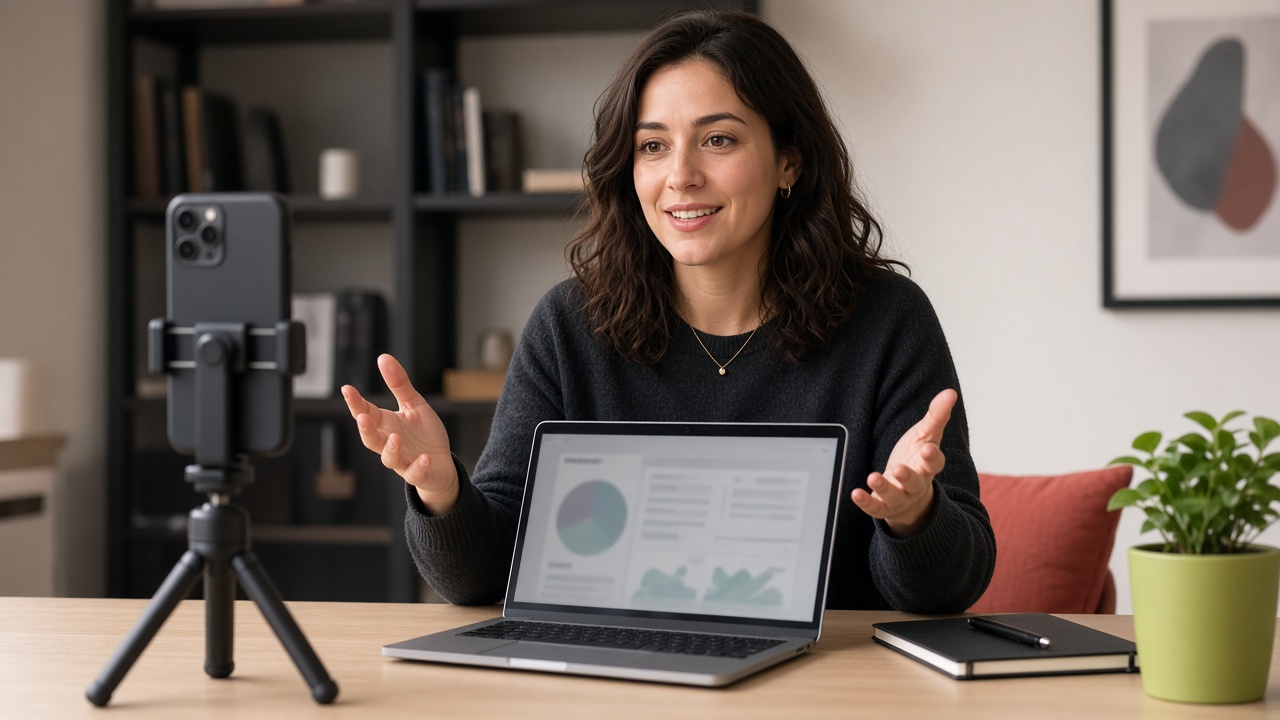
Knowing how to record a product demo well is one of the highest-leverage skills for a SaaS founder, marketer or seller. The same five minutes of video can sit on your homepage, go in sales follow-ups, onboard new users and run as an on-demand pitch. This guide gives you a structure, a script template and a recording workflow.
Decide the job of the demo
| Demo type | Audience | Length guide |
|---|---|---|
| Homepage overview | Cold visitors | Short: the one big outcome |
| Sales demo / pitch | Evaluating buyers | Longer: problem, proof, walkthrough, next step |
| Feature walkthrough | Users | One task, start to finish |
| Onboarding | New customers | A series of short task videos |
A structure that holds attention
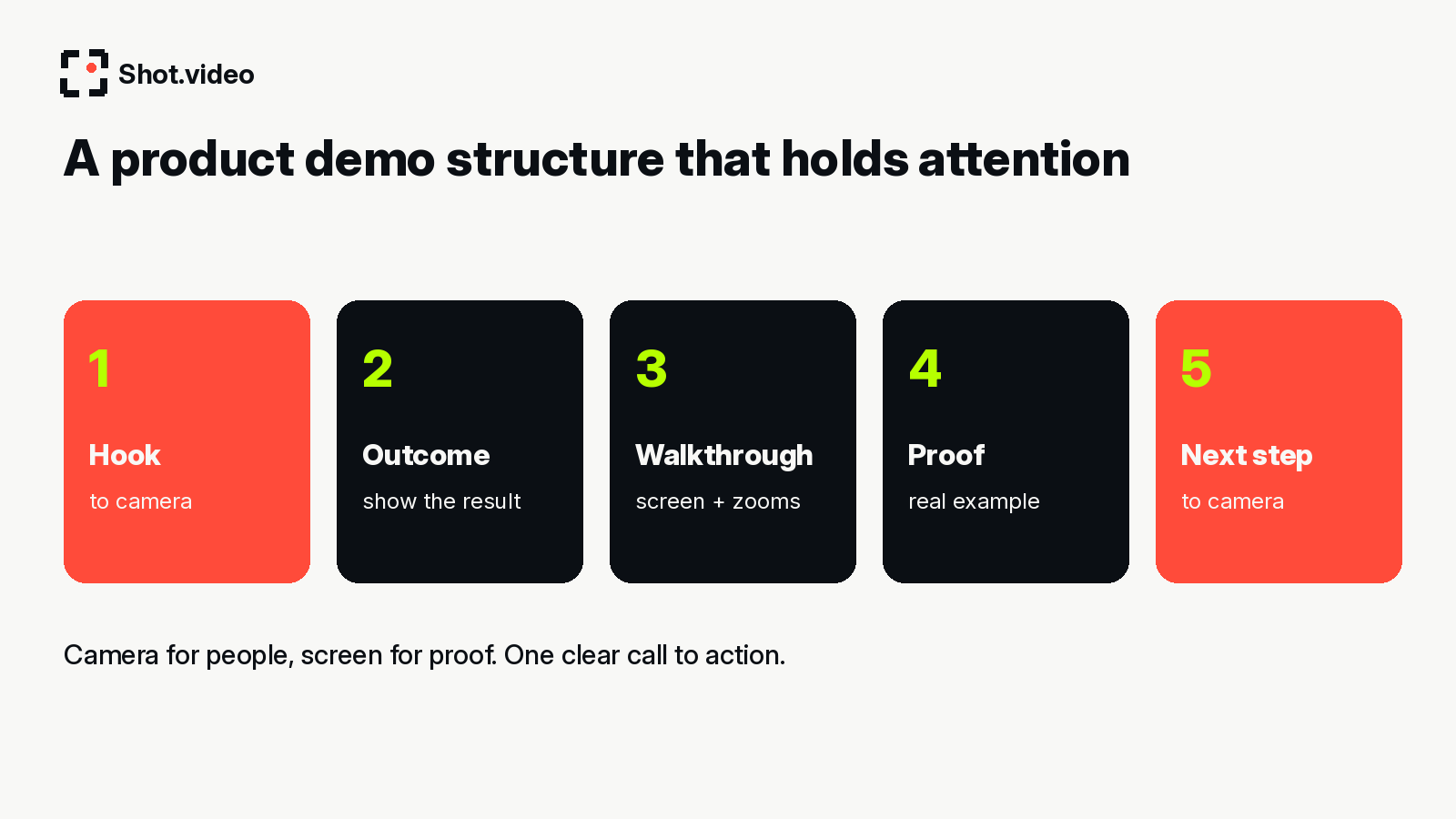
- Hook (to camera): name the problem in the viewer's words.
- Outcome: show the end result first, the finished report or the shipped page.
- Walkthrough (screen): three steps, no more. Narrate why, not just where to click.
- Proof: a real example or customer use case (only ones you can stand behind).
- Next step (to camera): one clear call to action.
Script template
"If you've ever [pain], this is for you. In the next few minutes I'll show you how [product] gets you [outcome]. Here's the finished result... Now let me show you how. Step one... step two... step three... That's it. If you want to try it, [CTA]."
Angles that make a demo feel produced
- Face-on camera for the hook and the CTA, because people buy from people.
- Screen with zooms so viewers can read what matters. Shot.video's zooms and pans glide in on the part of the screen that is changing and hold there.
- Overhead or close-up phone for hardware, physical products or hands on a keyboard. See using your phone as a second camera.
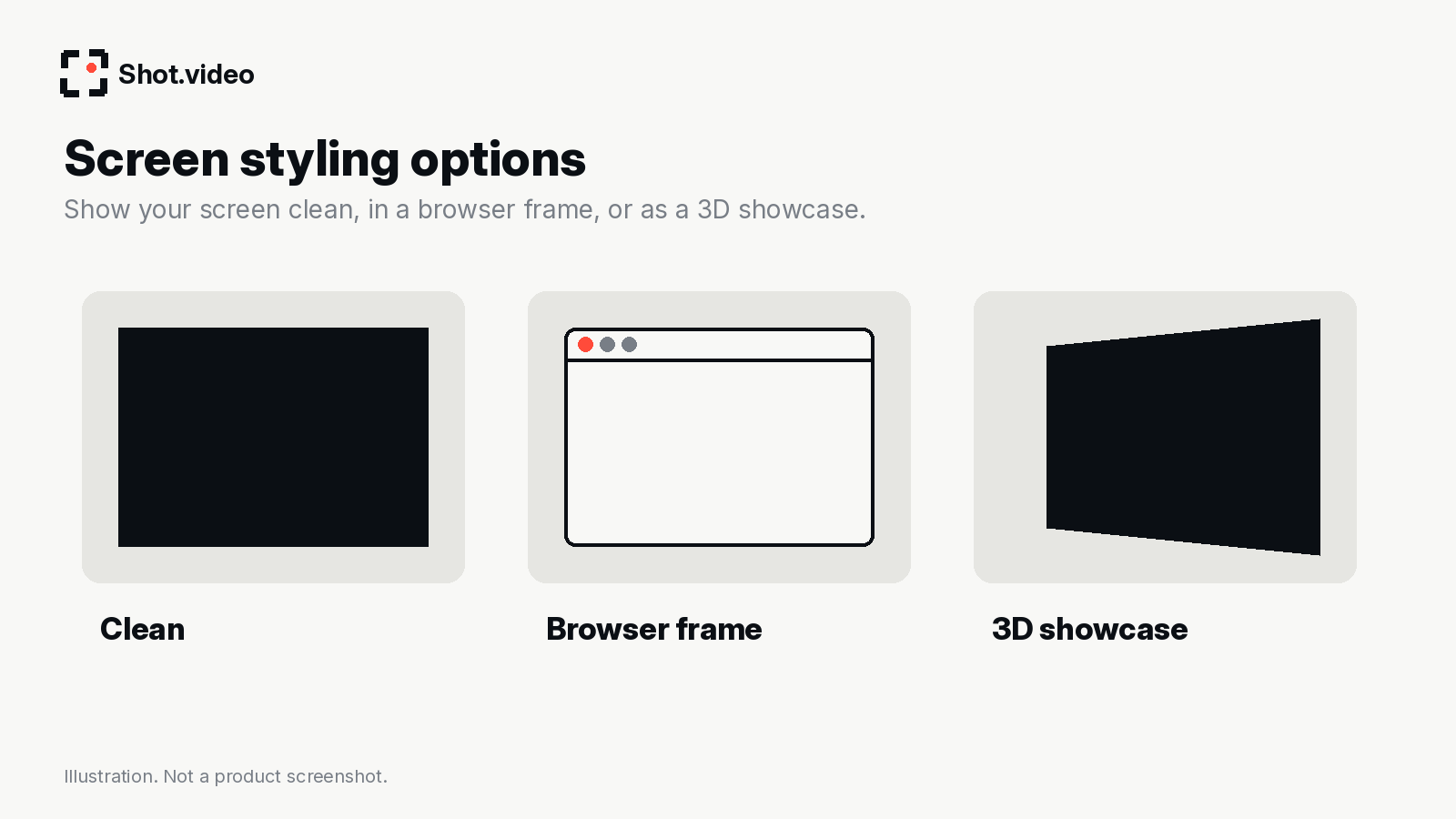
- Screen styling: show the screen clean, in a browser frame, or as a 3D showcase.
Recording workflow
- Clean your demo account: realistic data, no personal info, notifications off.
- Set up cameras: laptop camera at eye level, plus a phone connected by QR code if you want a second angle.
- Do one practice run out loud.
- Record in one take. Cameras, screen and audio are captured together, in sync.
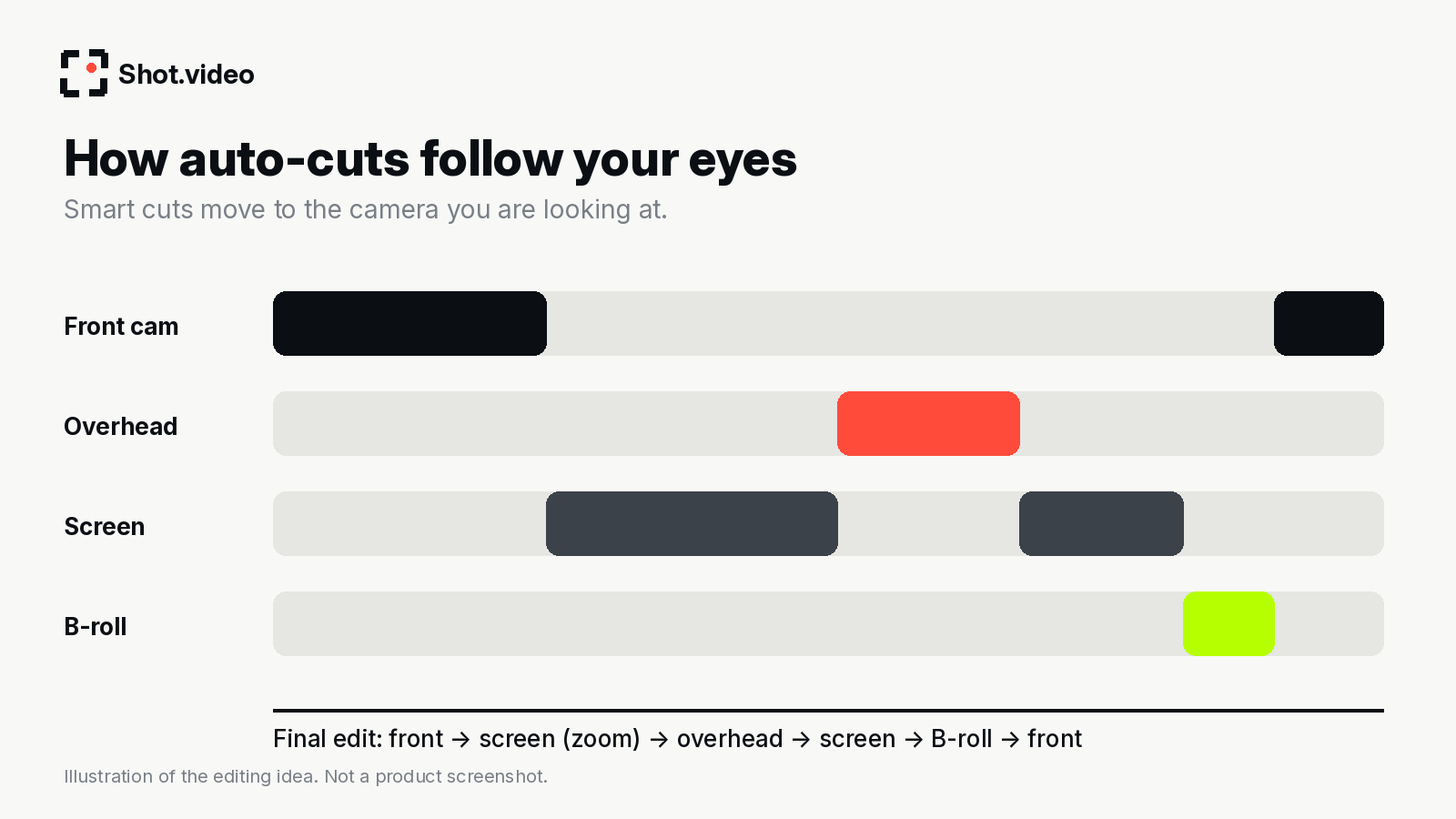
- Look at the camera you want on screen. Smart cuts move between angles to keep the story going.
- Review the AI first edit: approve or trim suggested B-roll and adjust cuts and zooms.
Mistakes that make people drop off
- Starting with a logo and an agenda instead of the problem.
- Showing every feature.
- Tiny, unreadable UI, which zooms fix.
- Mouse wiggling while you think.
- No clear next step.
Put your best demo to work
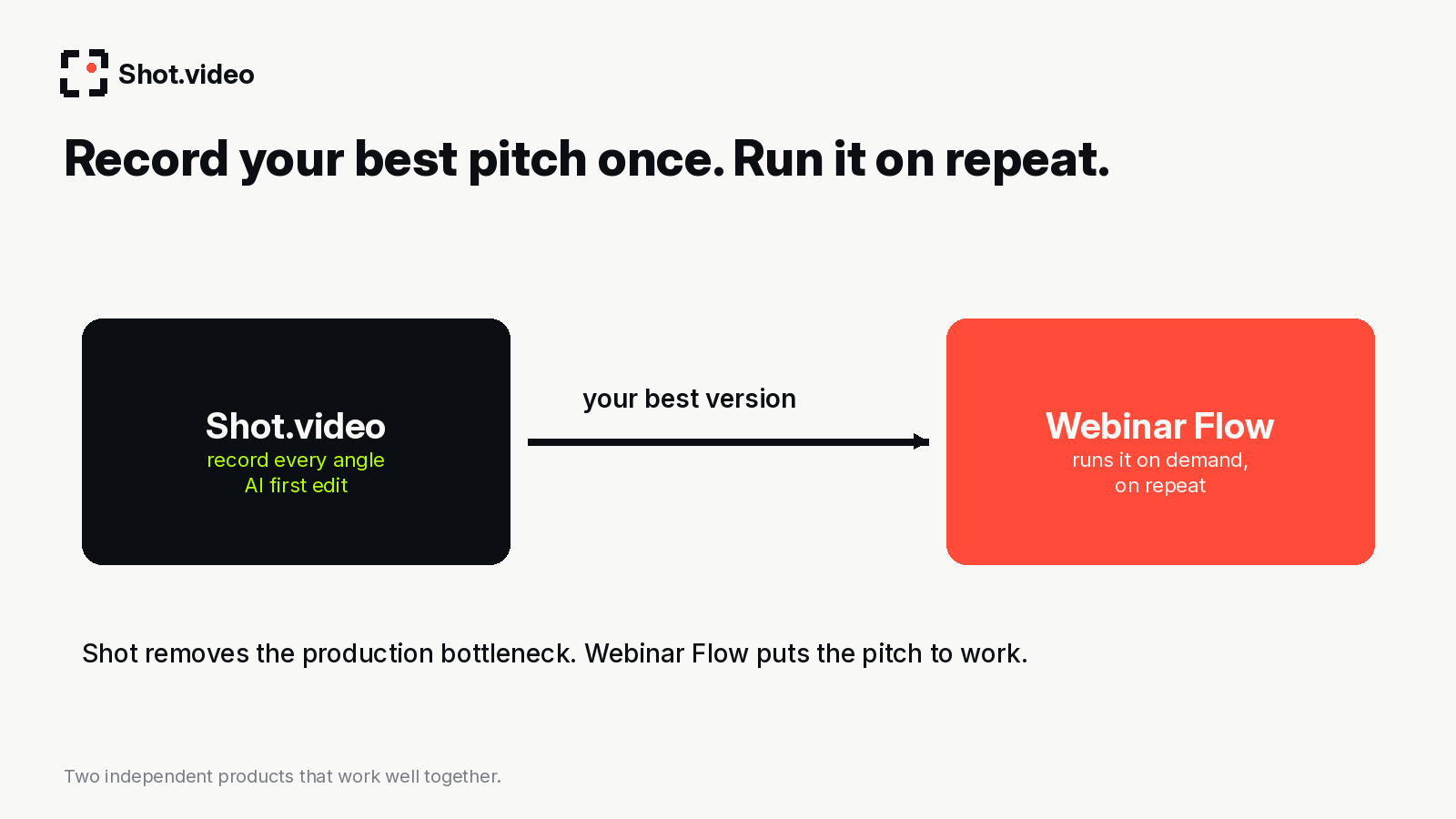
Once you have your best version recorded, you can run it as an on-demand demo with Webinar Flow. Read record your best pitch once, run it on repeat.
More: multi-camera recording guide · Loom alternatives
Make your next product video your best one yet. Scan a QR code to connect a phone, record your screen, laptop camera and phones together, and let AI put together a polished first edit with smart cuts, zooms and B-roll. Get started free with Shot.video.
Sources
- Shot.video (checked 29 October 2026)
- Webinar Flow (checked 29 October 2026)