Course video creation: keep lessons engaging with multiple angles
By Ian Naylor ·
Drafted with AI assistance, then fact-checked and edited by Ian Naylor before publishing.
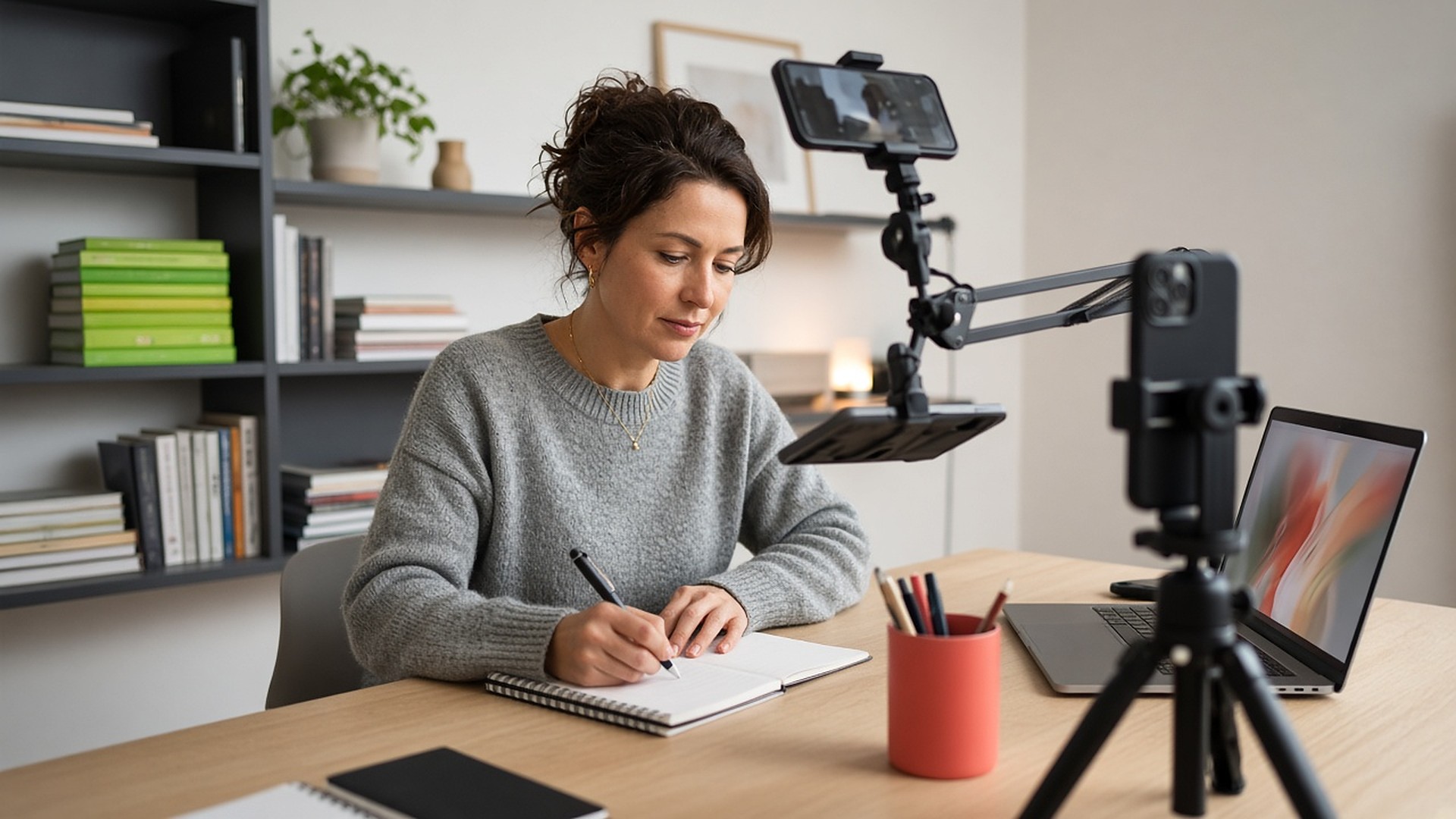
Course video creation is unlike any other kind of video work. You are not making one great video; you are making forty decent-to-great ones, and they all need to look like they belong together. Learners judge the course by whether they finish it, and they finish lessons that hold their attention. This guide is for course creators, educators, coaches and corporate trainers who want lessons that mix presenter, screen and demonstration footage, without spending every evening in an editor.
The course creator's real problems
- Volume. A single course can mean dozens of lessons. Any step you repeat per lesson (setup, syncing, editing) multiplies.
- Attention. A talking head for ten minutes is hard to watch. Slides alone feel like a lecture. Learners drift, and drop off.
- Showing, not telling. Many subjects need hands: writing equations, sketching, cooking, crafts, using an instrument, wiring a circuit. A laptop camera cannot see your desk.
- Consistency. If module one is filmed differently from module six, the course feels patched together.
- Editing fatigue. Cutting between angles by hand across a whole course is the point where many creators give up on multiple cameras entirely.
A lesson angle map
Most strong lessons use three ingredients: you (for connection), the screen or slides (for structure) and a demonstration (for understanding). Map each to a device:
- Laptop: slides or software, front camera and mic.
- Overhead phone: handwriting, worked examples, hands-on technique. Setup details are in the overhead camera guide.
- Whiteboard phone: if you teach standing at a board.
- Wide phone: a classroom feel, useful for intros and recaps.
- Close-up phone: materials, instruments, specimens or tools.
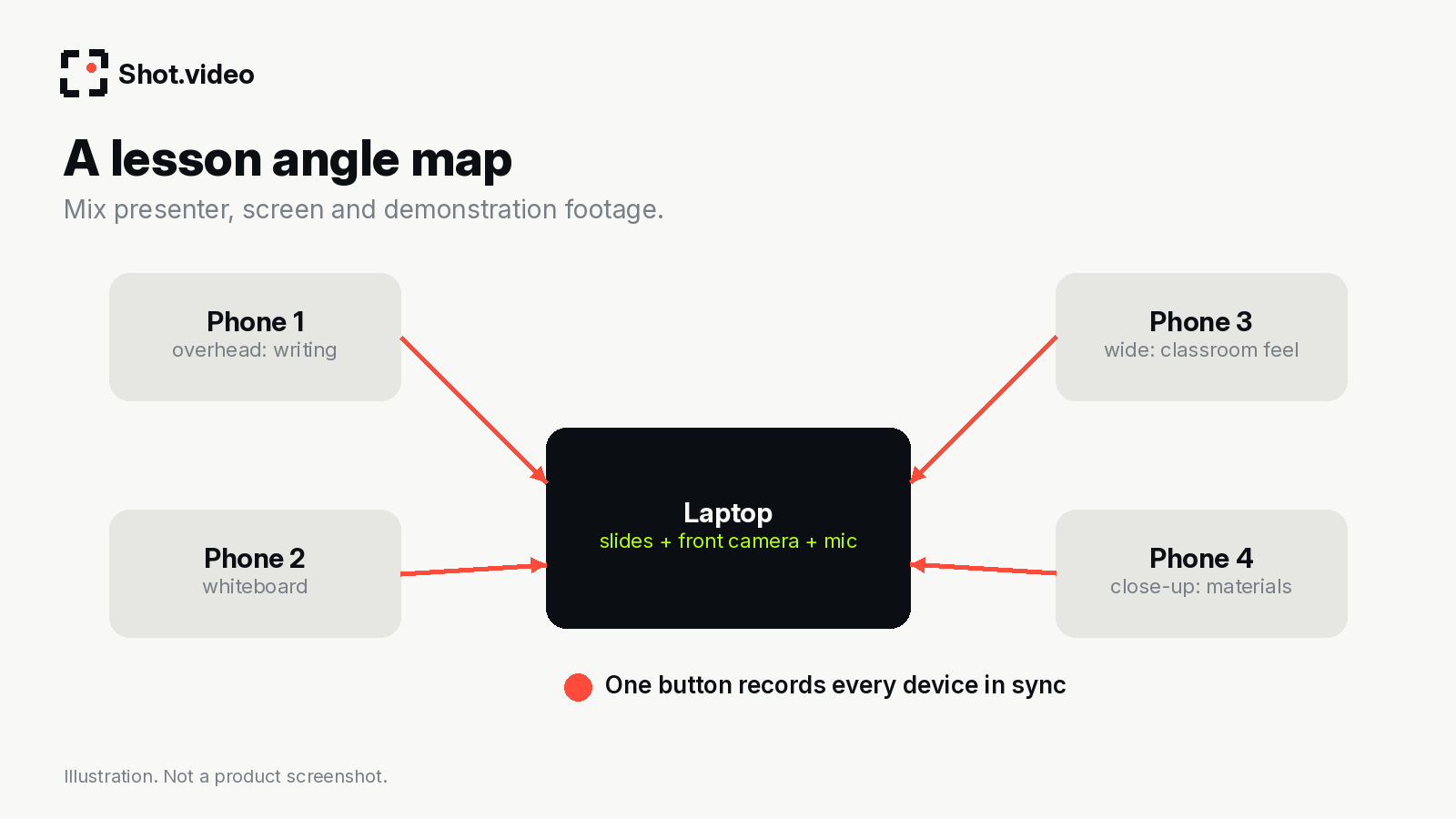
Two to five phones connect by scanning a QR code, with nothing to install, and one button records everything in sync. Borrowing a student's or colleague's phone for an extra angle is fine.
How much time does it save?
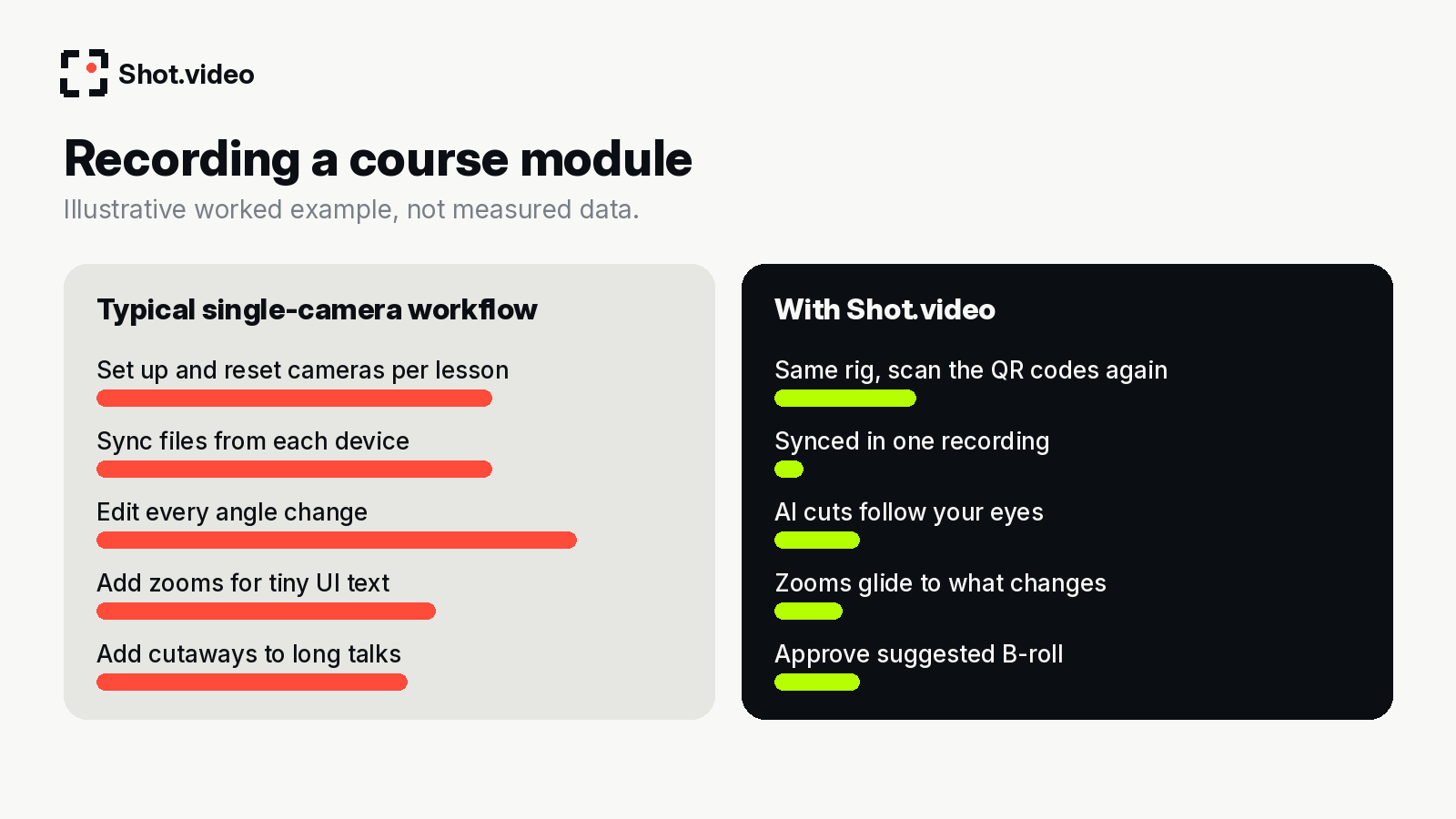
This is a worked example, not a measured result. A typical multi-angle lesson recorded the traditional way might involve: setting up each camera, starting each one separately, clapping to sync, recording, importing several files, aligning them, cutting between angles throughout, adding zooms where slide text is small and finding cutaways for long explanations. Multiply that by every lesson in the course.
Recording all sources together removes the syncing step completely. Automatic cuts to the camera you look at remove most of the manual angle-switching. Zooms that glide to the changing part of the screen remove the fiddly keyframing. What remains per lesson is reviewing the first edit, which is a much smaller job than building it.
Here is what Shot.video actually does, in plain terms. You record your screen, laptop camera and microphone, and add two to five phones as extra cameras by scanning a QR code. Nothing is installed on the phones; their browser does the recording. One button records every device in sync. Afterwards, AI builds a first edit: it cuts to the camera you are looking at, glides in on the part of the screen that is changing and holds there, and suggests B-roll cutaways you approve, trim, crop or move. You can also upload your own B-roll. Every choice stays editable.
How the AI edit helps learners
- Cuts follow your teaching. When you look down at the overhead camera to write, the edit goes there. When you look up to explain, it comes back to you. Learners always see what you are pointing at.
- Zooms make slides and software legible. Especially important for learners on phones.
- Punch-ins mark key points. A tighter frame on "this is the bit that's on the exam" works like a highlighter.
- B-roll for long explanations. A relevant image or short clip over a long stretch of theory keeps attention. Approve AI suggestions or upload your own diagrams and clips.
A repeatable module workflow
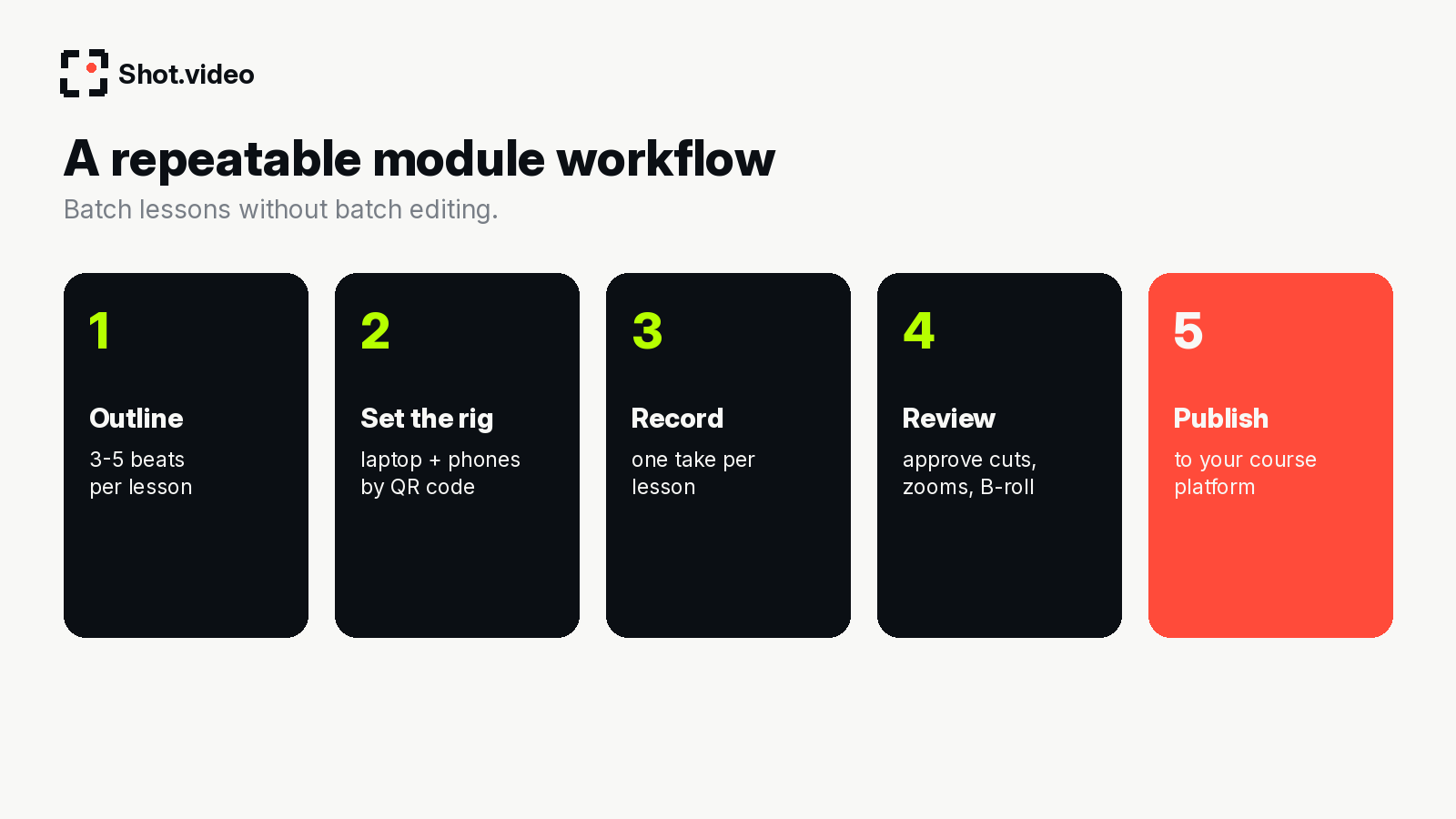
- Outline each lesson in three to five beats. One learning outcome per lesson.
- Set the rig once per session. Mark phone positions with tape so every lesson matches.
- Record one take per lesson. Pause between beats; pauses make natural cut points.
- Review the first edit. Approve cuts, zooms and B-roll; adjust anything that misses.
- Publish to your course platform with consistent titles and thumbnails.
Batching several lessons in one session, with the same rig, is where the biggest time savings come from, because setup happens once.
Ideas for different subjects
- Maths and science: overhead for worked problems, front for intuition.
- Software skills: screen with zooms plus an overhead on the keyboard for shortcuts. See tutorial and walkthrough videos.
- Creative skills: close-up on the brush, needle or tool, wide for posture.
- Corporate training: slides plus a side angle for an interview feel. See business and team update videos.
- Languages: face-on for pronunciation, overhead for writing characters.
Mistakes to avoid
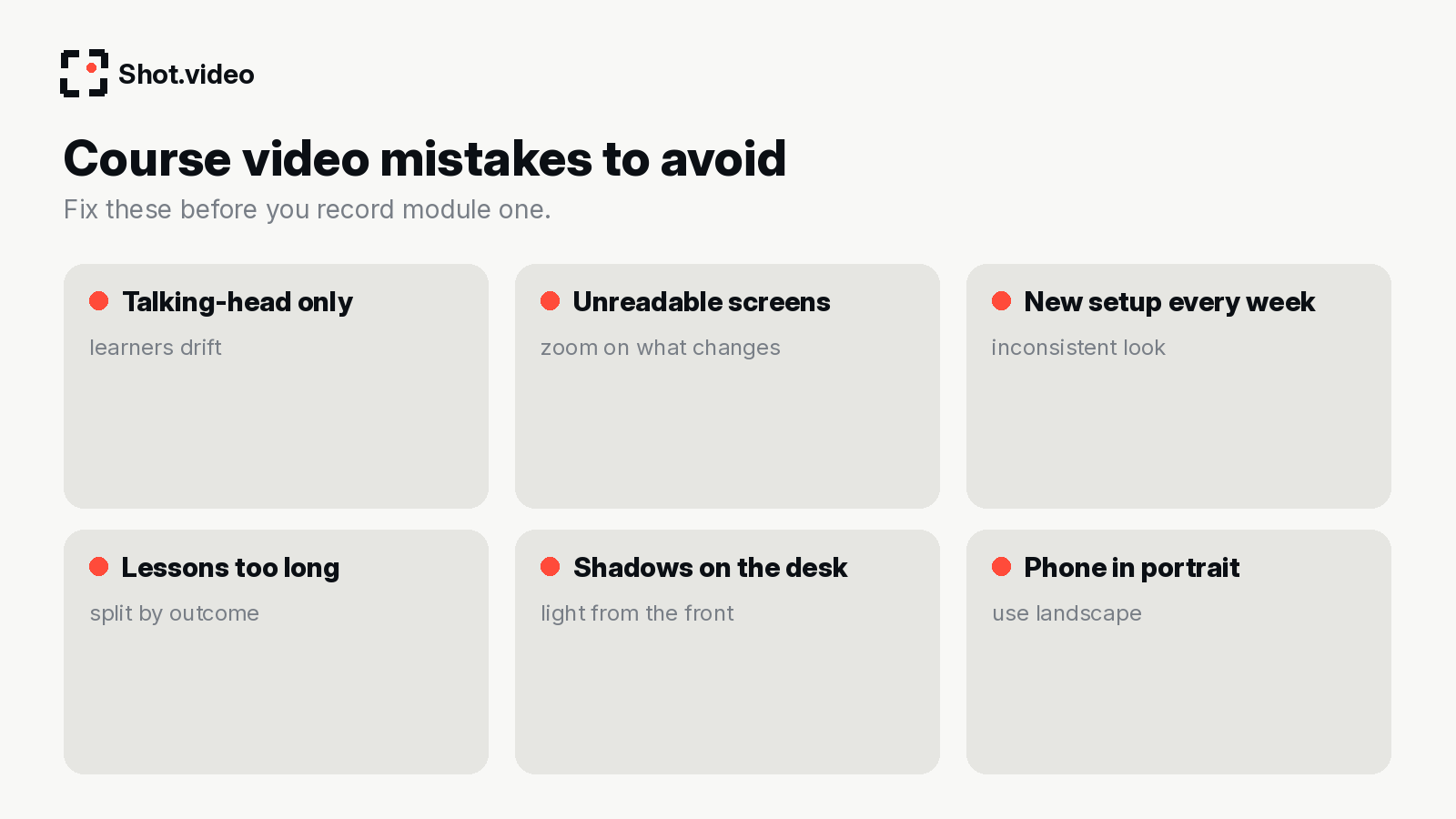
- A talking head only, with nothing to look at but you.
- Screens recorded at full resolution and never zoomed.
- Changing the setup every week, so modules do not match.
- Lessons that cover three ideas. Split them.
- Lighting from behind, which puts your hands in shadow on the overhead shot.
A typical recording day (worked example)
Here is how a course creator might structure a single recording day for one module of five lessons. This is an illustrative plan rather than a promise of timings.
Morning: set up once. Clear the desk, set soft light from the front, mount the overhead phone and place a second phone for a side angle. Mark each position with a small piece of tape so the next session matches. Scan the QR codes, check every frame in landscape, and do a thirty-second test recording to confirm your voice is clear on the laptop mic.
Late morning: record lessons one and two. Each lesson follows the same rhythm: a short intro to camera, the core explanation on slides, a worked example under the overhead phone, then a recap to camera. Because the edit follows where you look, you do not need to remember to "switch cameras"; you simply teach.
Afternoon: record lessons three to five. Energy dips after lunch, so keep these lessons tighter. If you stumble, pause, look back at the main camera and repeat the sentence; the second angle gives the edit somewhere to cut.
End of day: review. Go through each first edit. Approve or replace B-roll (your own diagrams are often best for teaching), tweak any cut that landed on the wrong angle and check zooms on dense slides. Then upload to your course platform with consistent titles.
The point of the worked example is the shape of the day: setup happens once, recording is continuous, and editing becomes reviewing. That is what makes a forty-lesson course feasible for one person.
Keeping a long course consistent
Consistency is a quality signal. Use the same angles, the same framing and the same screen styling (clean, browser frame or 3D showcase) across every module. Keep an intro line and an outro line you repeat in every lesson. Learners notice when a course feels designed rather than assembled.
FAQ
What equipment do I need for course video creation?
A laptop and one phone is enough to start. Add phones for overhead or close-up angles. A small mount and soft front light help more than any camera upgrade.
Can I record lessons with my students' phones as cameras?
Yes. Any phone can join by scanning a QR code with no app to install.
Can I add my own diagrams as B-roll?
Yes. Upload your own images or clips, or approve suggested B-roll.
Is the edit final?
No. The AI creates a first edit and every choice stays editable.
Related: multi-camera recording guide · Camtasia vs Shot.video for course creators
Make your next video your best one yet
Your laptop. Your phone. Your screen. One recording. AI does the editing. Scan a QR code to add phones as extra cameras (no app to install), press record once, and get a polished, multi-angle first edit with smart cuts, zooms and B-roll. Get started free with Shot.video.