Video podcast recording: a camera on every guest, cut to whoever speaks
By Ian Naylor ·
Prepared with AI assistance. Sources and references are linked below.
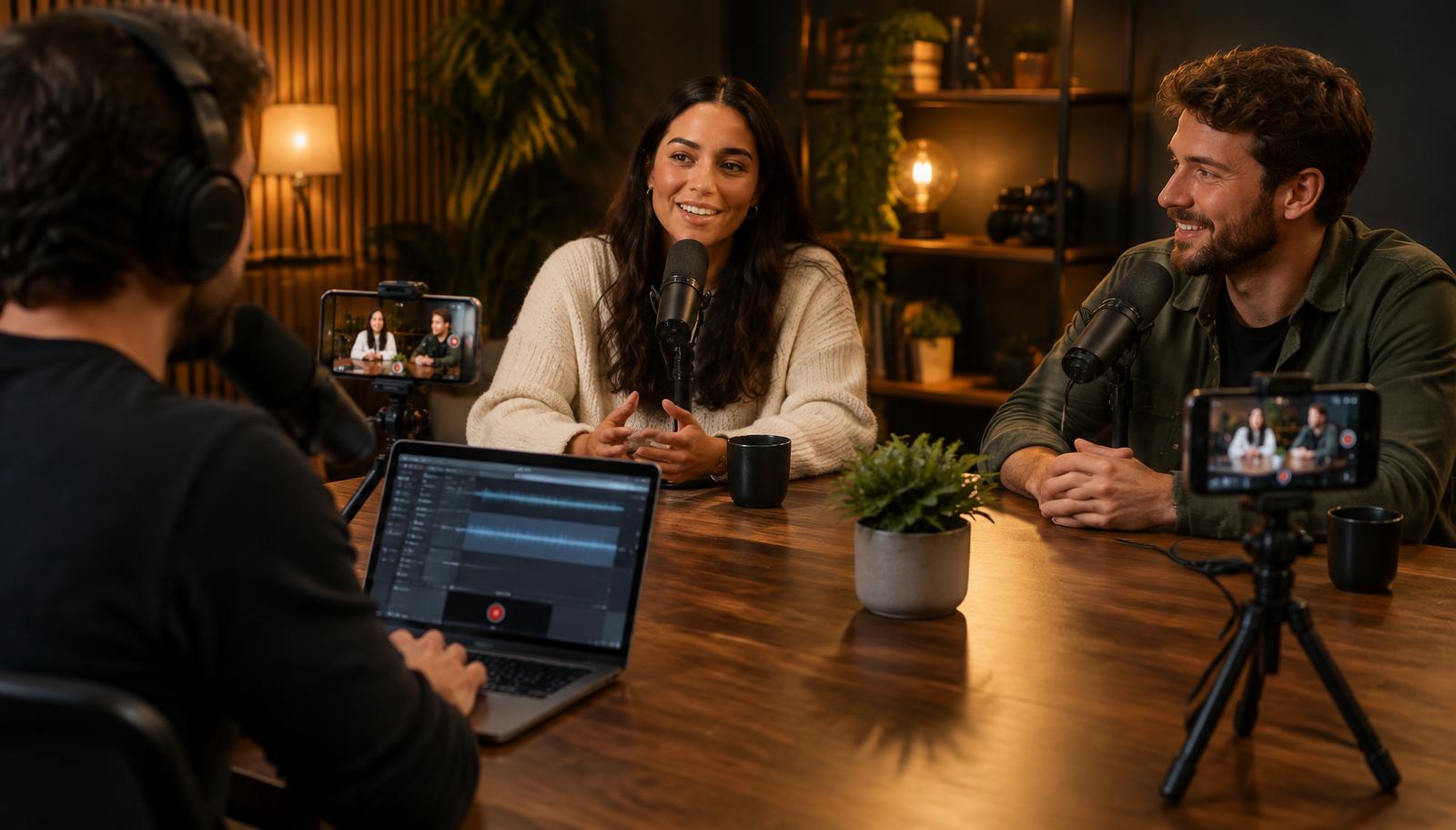
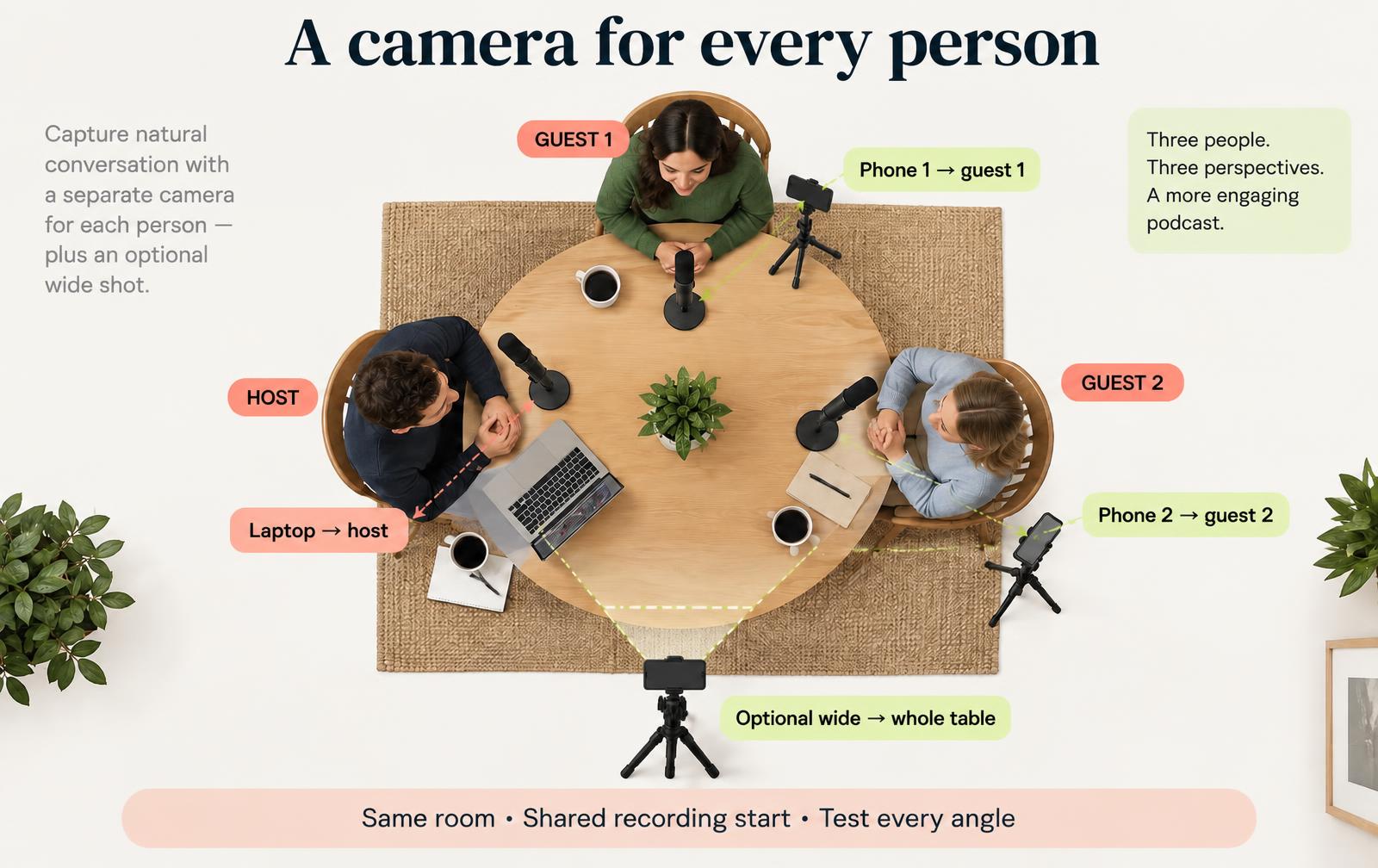
Video podcast recording with Shot.video means filming everyone in the same room at once: the laptop films the host, and each guest has a phone on a small stand pointed at them. You press record once, every device films in sync, and the AI edit cuts to whoever is speaking.
Why add video to an in-person podcast?
Video lets viewers see speakers, reactions and demonstrations alongside the conversation.
The problem is that a good-looking video podcast normally means one camera per person, a camera operator or a switcher, and hours of editing to cut between angles. Most small shows cannot justify that for every episode.
How does a phone-per-guest setup work?
Each guest has a phone aimed at them in the same room, synchronized with the laptop recording.
- Laptop on the host: its camera films the host, and its mic records the main sound.
- One phone per guest: on a mini tripod or clamp, at eye level, framed head and shoulders.
- Optional wide phone: a phone further back showing the whole table, useful for laughs and cross-talk.
- Join by QR code: each phone scans the code on the laptop and becomes a camera in its browser, with no app to install.
When you press record on the laptop, every phone starts at the same scheduled moment, so all angles line up on one timeline. Recordings can run up to 10 minutes each, so record longer episodes in segments.
How does the edit know who is speaking?
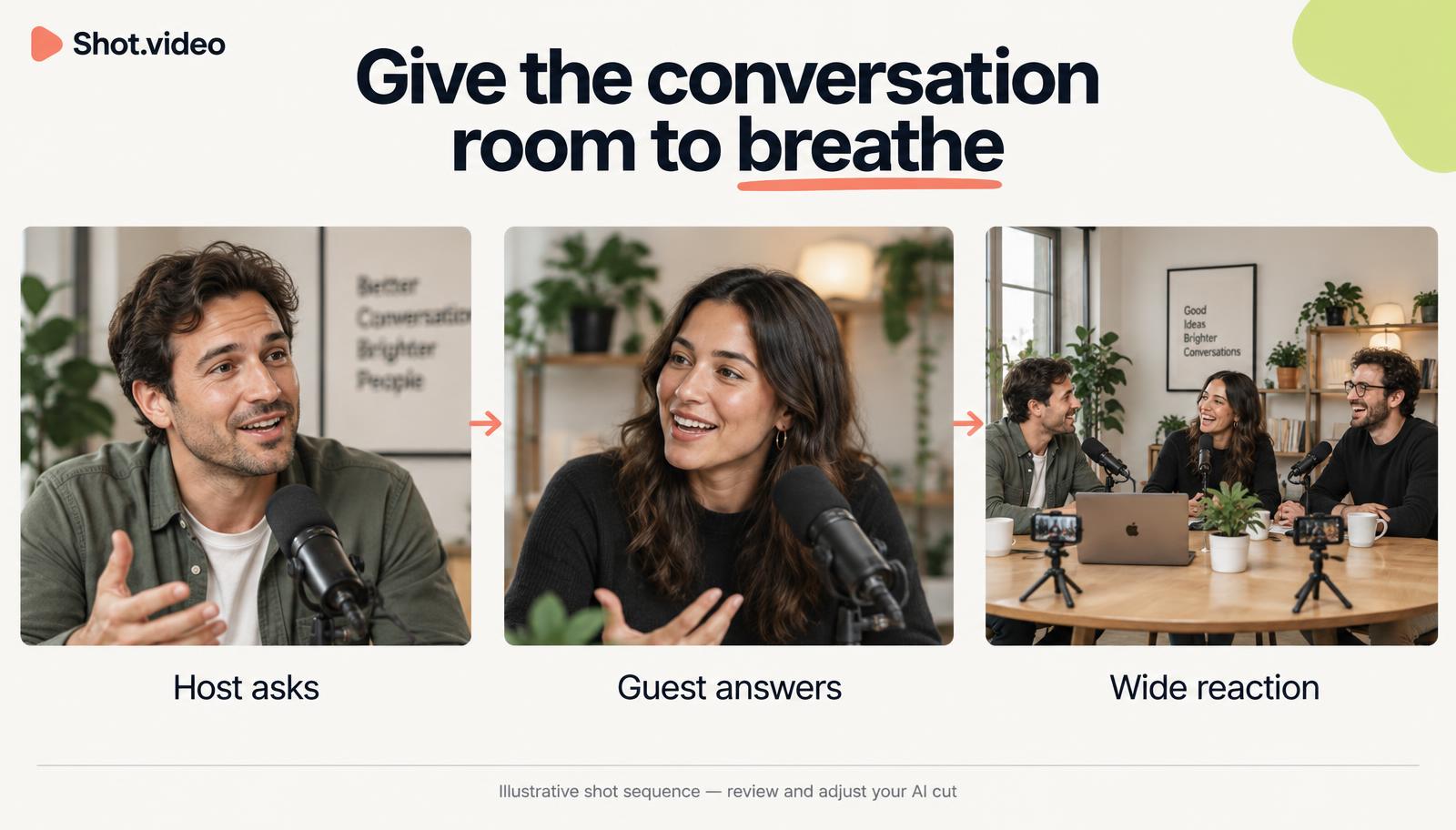
After recording, Shot.video looks at the footage and the transcript to choose the camera for each moment. It favours the person who is talking and facing their camera, holds each shot long enough to feel natural, and rotates between angles in longer answers so the episode does not sit on one face.
You stay in charge. Click any shot on the timeline to change its camera, drag the cut points to move a switch, or use Redo AI cut. Punch-ins can add small zooms on emphasised words, and subtitles can be added for viewers watching with the sound off.
Can each guest's own microphone be used?
Yes. Phones record their microphone as well as video, and the laptop mic remains the default sound source.
- Main mic: keep the laptop’s sound throughout when it captures the whole table clearly.
- Follow camera: switch to the active camera’s microphone when its sound is better.
- Per-shot choice: override the sound on a selected shot rather than changing the whole edit.
Only one microphone plays at a time, with a short fade at each change, so you do not get the hollow echo that comes from mixing several mics in one room.
Test sound, not just framing. Record a short exchange with every guest speaking. Compare the main mic with each phone before choosing Follow camera; a closer phone is not automatically a better microphone.
Why must everyone be in the same room?
Shot.video is built for in-person recording. Remote guests would need to hear the host through a speaker, and their phone would record that sound back as an echo. For remote interviews, a dedicated remote recording tool is a better fit. For a table of people in one room, a phone per person is simple and cheap.
How should you set up the room?
Choose a quiet room, place a phone on each guest and check light, framing and microphone distance.
- Light faces from the front. Avoid windows behind guests; a lamp or window in front of them is enough.
- Soften the room. Rugs, curtains and bookshelves reduce echo more than any filter.
- Frame at eye level. Phones looking up at guests are unflattering; stack a book under the tripod if needed.
- Turn on Do Not Disturb on every phone so calls and notifications do not interrupt the recording.
- Plug phones in for longer sessions, and check each preview on the laptop before recording.
What does a typical episode workflow look like?
Prepare the topic and cameras, record in takes of ten minutes or less, review speaker choices and share the edit.
- Plan segments of up to 10 minutes: intro, each topic, wrap-up.
- Set up and scan the QR code on each phone, then check every angle in the phone previews.
- Record each segment once. Talk to each other, not the cameras.
- Review the first edit, fix any camera choices and pick the sound for each shot.
- Export in landscape 16:9 for the full episode, or portrait 9:16 for short clips.
What should you check before pressing record?
Check every camera and microphone with a short shared test before starting the conversation.
- Picture: each face is fully visible, well lit and at eye level.
- Sound: every guest can be heard clearly without room speakers feeding back into the recording.
- Devices: permissions are granted, power is sufficient and notifications are silenced.
- Plan: split the conversation into takes of ten minutes or less and leave time for review.
Which mistakes should you avoid?
Avoid cluttered framing, unreadable screens, distracting sound and recording without a short test.
- Mixing remote and in-room guests in one recording.
- Placing phones so close they block eye contact between people.
- Leaving speakers on in the room while recording.
- Recording one long take past the 10-minute limit instead of segments.
- Forgetting to check that every guest's face is fully in frame.
What recording and editing options are available?
Shot.video supports synchronized laptop and phone recording, with editable camera choices and optional B-roll.
How many phones can I connect?
You can connect several phones. Each one adds an angle and uploads its own file, so a fast, stable connection helps when three or more are connected.
Do guests need to install an app?
No. Guests scan the QR code and the phone records in its browser.
Can I make short clips from the episode?
Yes. Switch the video to portrait 9:16 in the editor's settings, and remove sections you do not need with the cut tool, which keeps every angle and sound in sync.
Can I add B-roll?
Yes. Upload your own images and clips for free, or approve suggested B-roll to illustrate a topic.
Related: use your phone as a second camera · multi-camera recording guide · business and team update videos
How can you try Shot.video?
Start with the free plan without a card, connect same-room phones by QR code, and record a short test.
Your laptop. Your phones. One recording. Get started free with Shot.video: scan a QR code to add each guest's phone, press record once, and get a multi-angle first edit that cuts to whoever is speaking.
How should you check capture and accessibility before publishing?
Browser screen capture requires selecting and authorizing a source; MDN explains the capture permissions and audio limitations. Run a short test rather than assuming every browser captures system sound.
Review synchronized captions for dialogue, important sounds and speaker identification, following W3C’s prerecorded-caption guidance. Automatic transcript text alone is not a guarantee of accessible captions.