Review and unboxing videos: every angle without a complex setup
By Ian Naylor ·
Drafted with AI assistance, then fact-checked and edited by Ian Naylor before publishing.
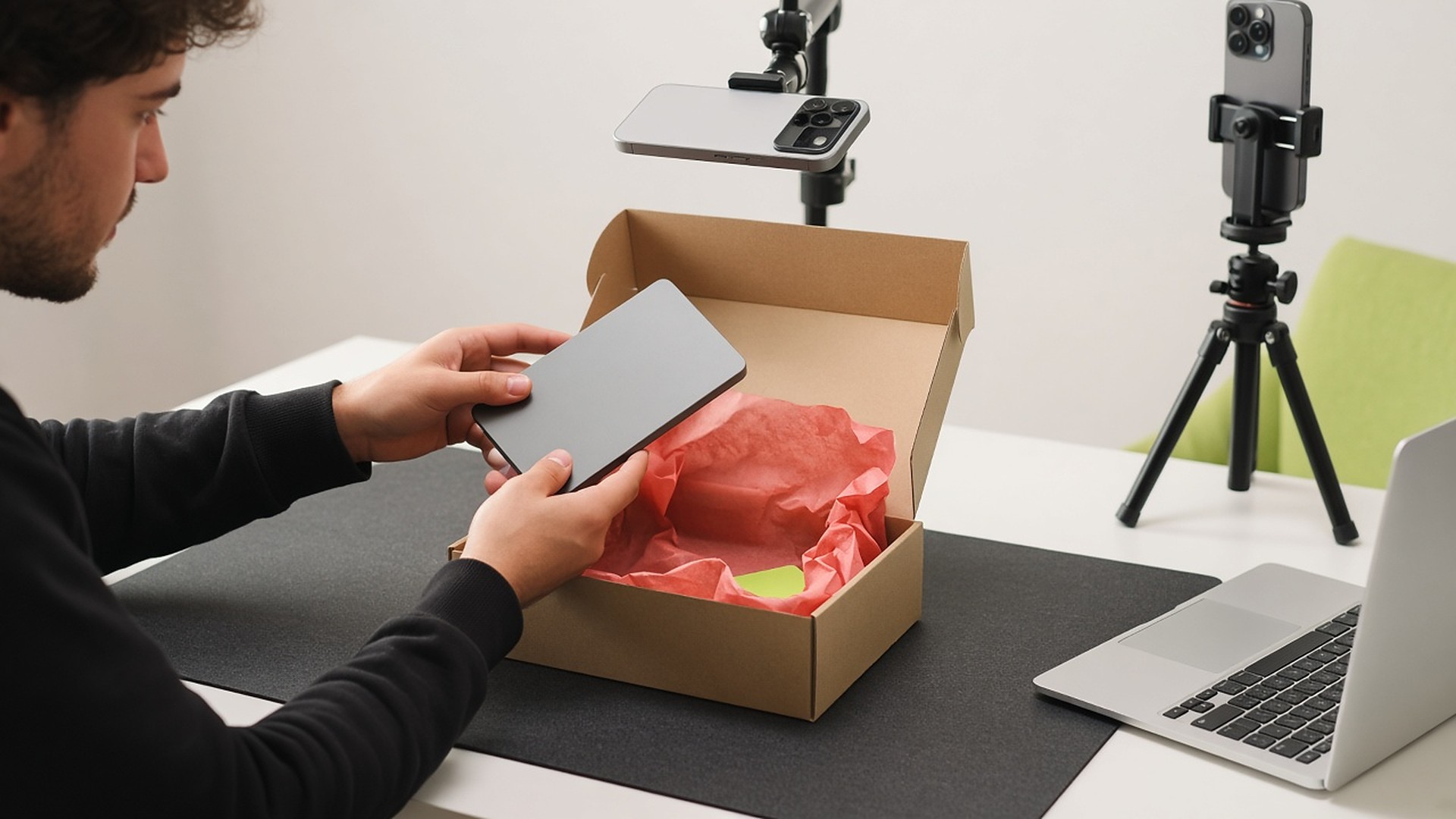
Unboxing videos and product reviews are built on angles. Viewers want to see your reaction, the reveal from above, and the details up close: the ports, the textures, the labels, the bit that broke. Big channels film this with several cameras and an editor. Most creators, small brands and reviewers have a phone, a laptop and a kitchen table. This guide shows how to capture the main view, close-ups and overhead angles without a complex setup, and let AI do the switching.
Who this is for
- YouTubers and TikTok creators reviewing tech, beauty, toys, tools or food.
- Small e-commerce brands filming their own products for listings and ads.
- Affiliate and comparison publishers who need honest, detailed looks at products.
- Agencies producing review-style content for clients.
The pain points
- The reveal happens once. If the overhead camera was not rolling, the moment is gone; re-staging a reveal never looks as genuine.
- Close-ups get filmed separately. Then you are matching cutaways to what you said, by hand.
- Syncing multiple cameras is tedious. Several phones means several files and a lot of scrubbing.
- Choosing the angle for every second. Even with all the footage lined up, deciding when to cut is the slowest part of the edit.
- Gear creep. Every tutorial suggests another camera, mount or capture card.
An overhead unboxing rig, using phones
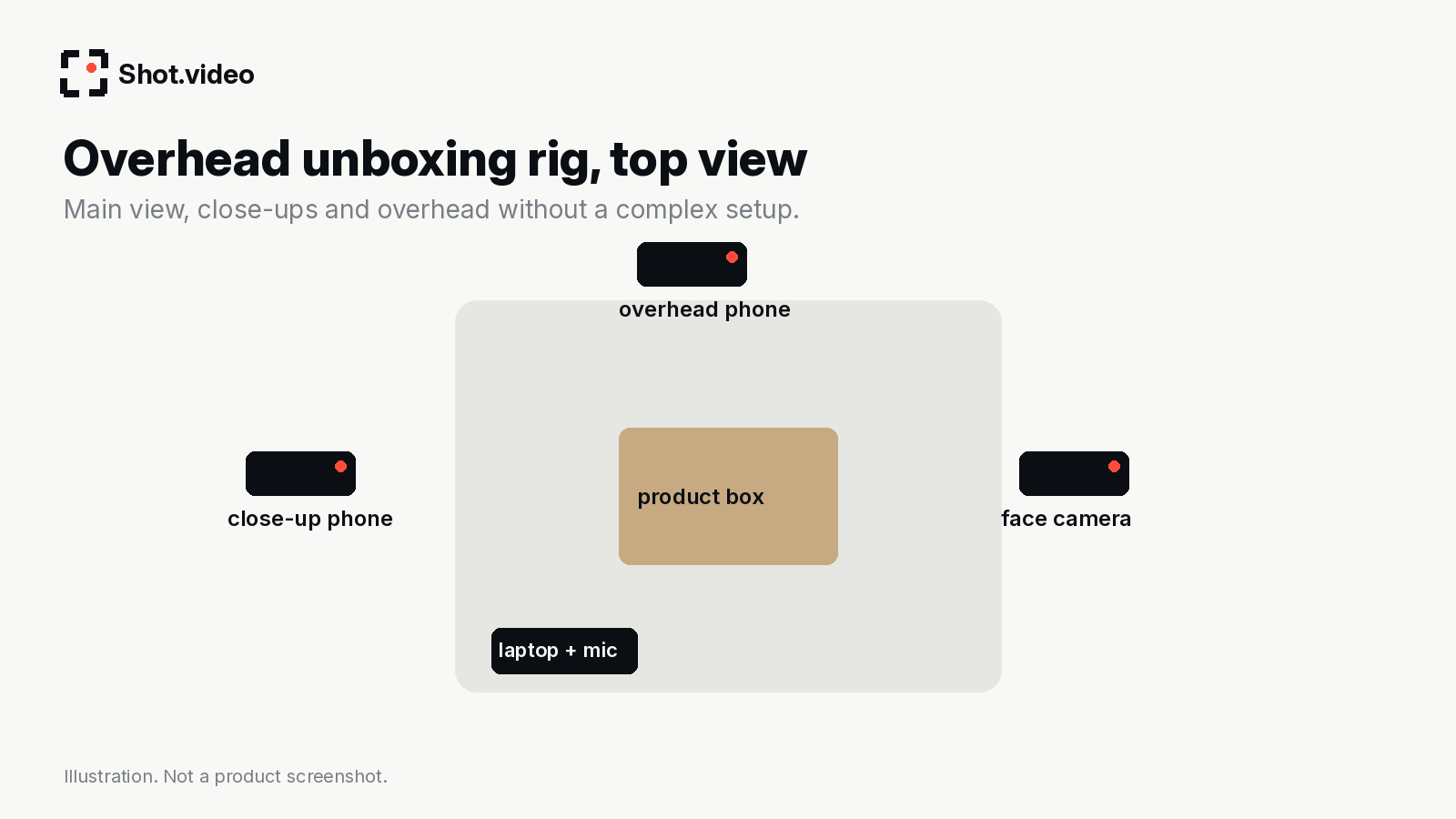
- Overhead phone on an arm or clamp, straight down over the box. This is the reveal shot.
- Close-up phone low and to the side, for details and textures.
- Face camera, the laptop camera or a phone at eye level, for reactions and verdicts.
- Laptop nearby for the mic and, if relevant, a screen (pairing an app, showing a spec sheet).
Each phone joins by scanning a QR code, nothing to install, and two to five phones can be connected. A friend's phone makes a perfectly good third angle. One button records all of them together, in sync. See the overhead camera setup guide for mounting tips.
Plan your shot list
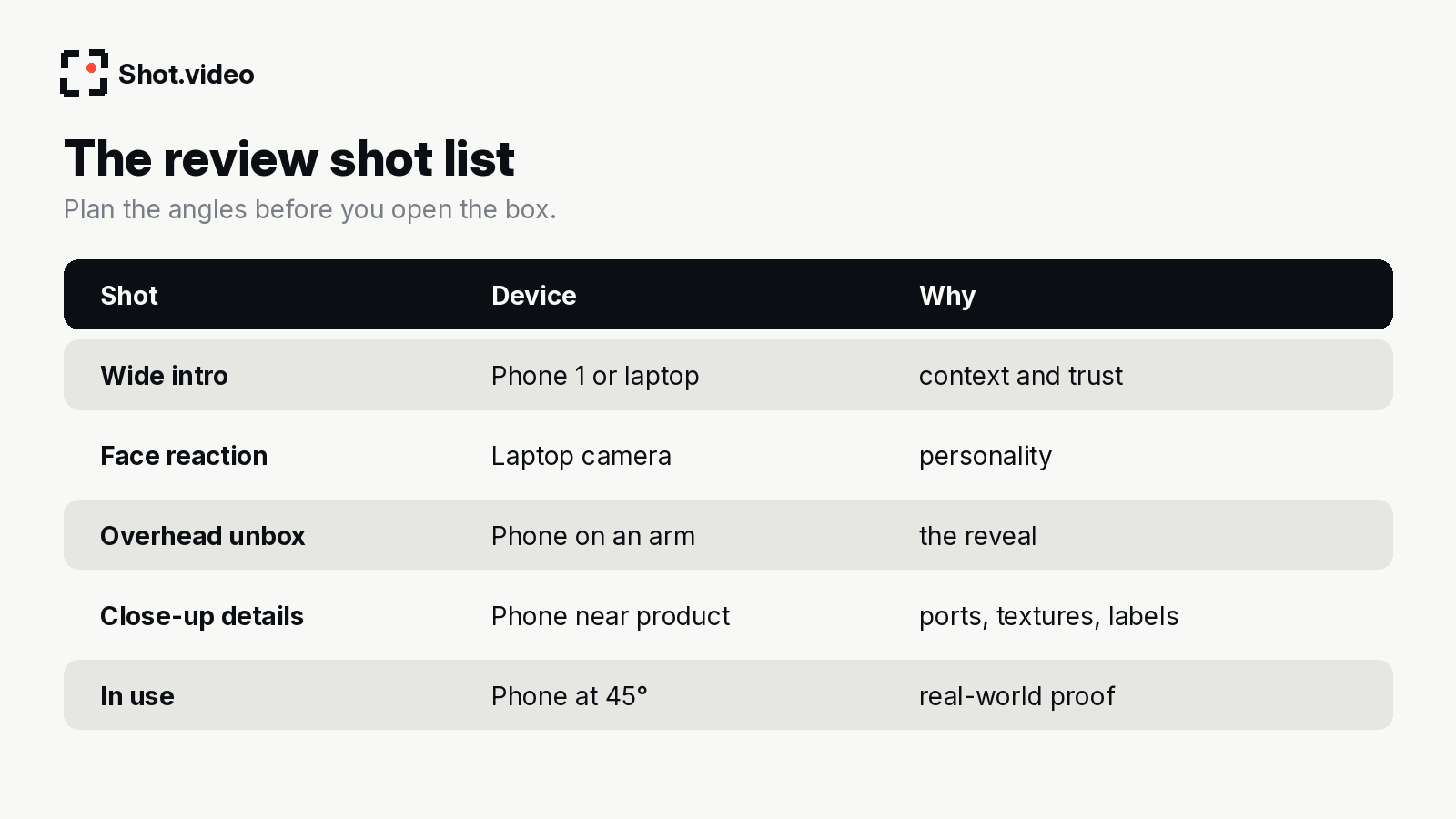
Before you open anything, decide which moments need which camera. A simple order that works for most reviews: wide intro, first impressions to camera, overhead unbox, close-up details, the product in use, then the verdict to camera.
Here is what Shot.video actually does, in plain terms. You record your screen, laptop camera and microphone, and add two to five phones as extra cameras by scanning a QR code. Nothing is installed on the phones; their browser does the recording. One button records every device in sync. Afterwards, AI builds a first edit: it cuts to the camera you are looking at, glides in on the part of the screen that is changing and holds there, and suggests B-roll cutaways you approve, trim, crop or move. You can also upload your own B-roll. Every choice stays editable.
How the AI edit helps reviewers
- Auto-switching follows your attention. Look down at the box and the overhead comes in. Look at the close-up phone as you turn the product, and the edit goes there. Look up to give your opinion and it is back on your face. This is the editing decision reviewers spend most time on, made for you.
- Punch-ins on details. Emphasis on the port, the stitching or the scratch.
- B-roll for specs and context. Approve suggested cutaways or upload your own product shots, packaging photos or clips of the product in use.
- Screen zooms when you pair a device with its app or show a spec page.
Time saved: a worked example
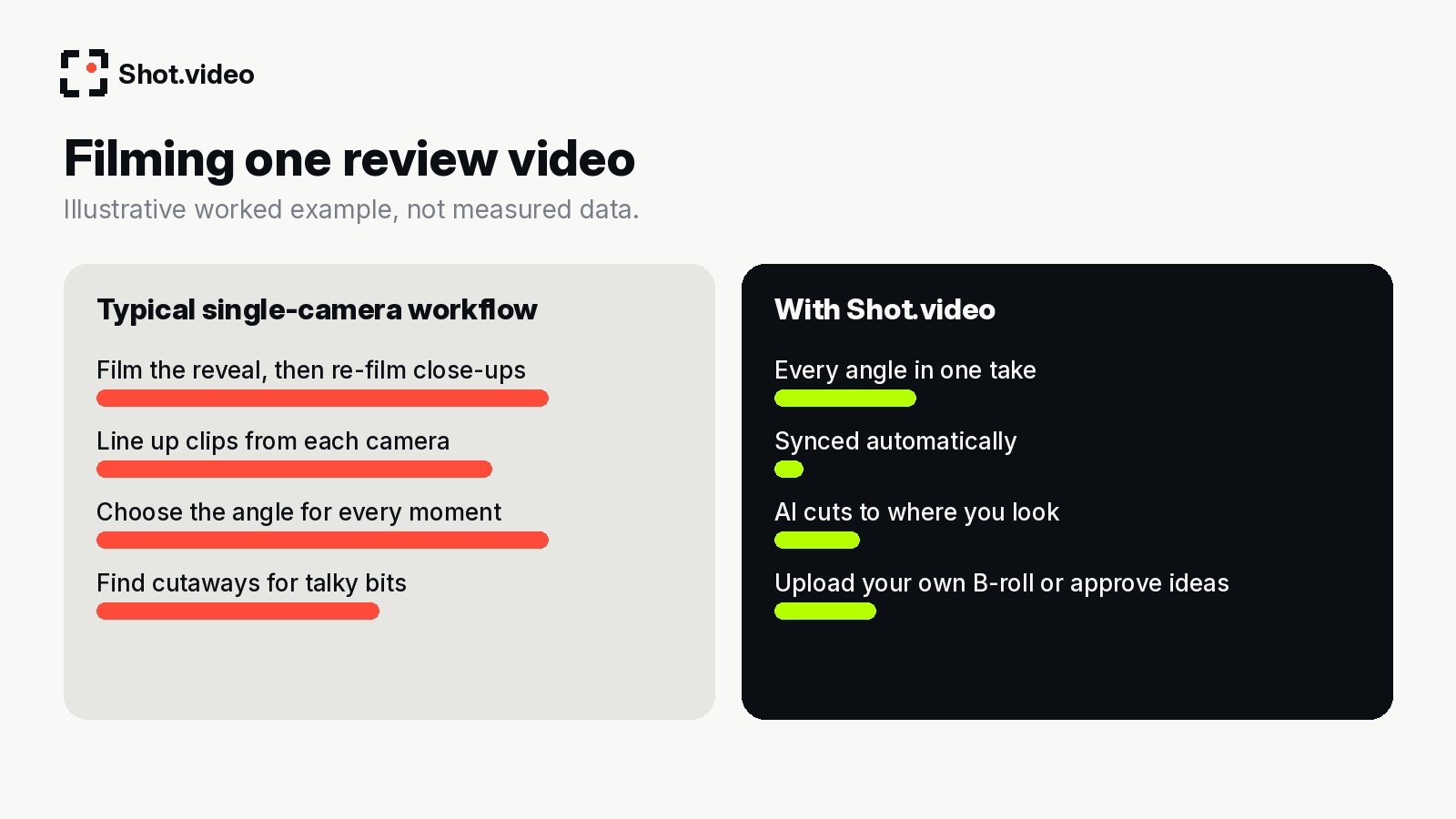
Illustrative, not measured: a typical solo review might mean filming the unboxing on one phone, then re-filming close-ups, then a separate piece to camera, then importing and lining everything up and choosing cuts across the whole video. Recording all angles at once means the genuine reveal is captured from every side, nothing needs syncing, and the first edit already cuts to where you were looking. You spend your time on the verdict, which is what viewers actually come for.
Step-by-step workflow
- Clear and light the table; overhead shots show everything.
- Mount the overhead phone, place the close-up and face cameras, and scan the QR codes.
- Check each frame in landscape.
- Record in one go: intro, unbox, details, use, verdict.
- Review the first edit, approve or replace B-roll, and adjust any cut.
- Use the finished video on YouTube, product pages or as the source for short-form clips.
Ideas
- Side-by-side comparisons: two products on the table, a close-up phone on each.
- "First 10 minutes" setup videos: overhead for the setup, screen for the app pairing.
- Long-term reviews: use the same rig each time so updates look consistent.
- Brand product pages: a short multi-angle clip often explains a product better than photos alone.
Mistakes to avoid
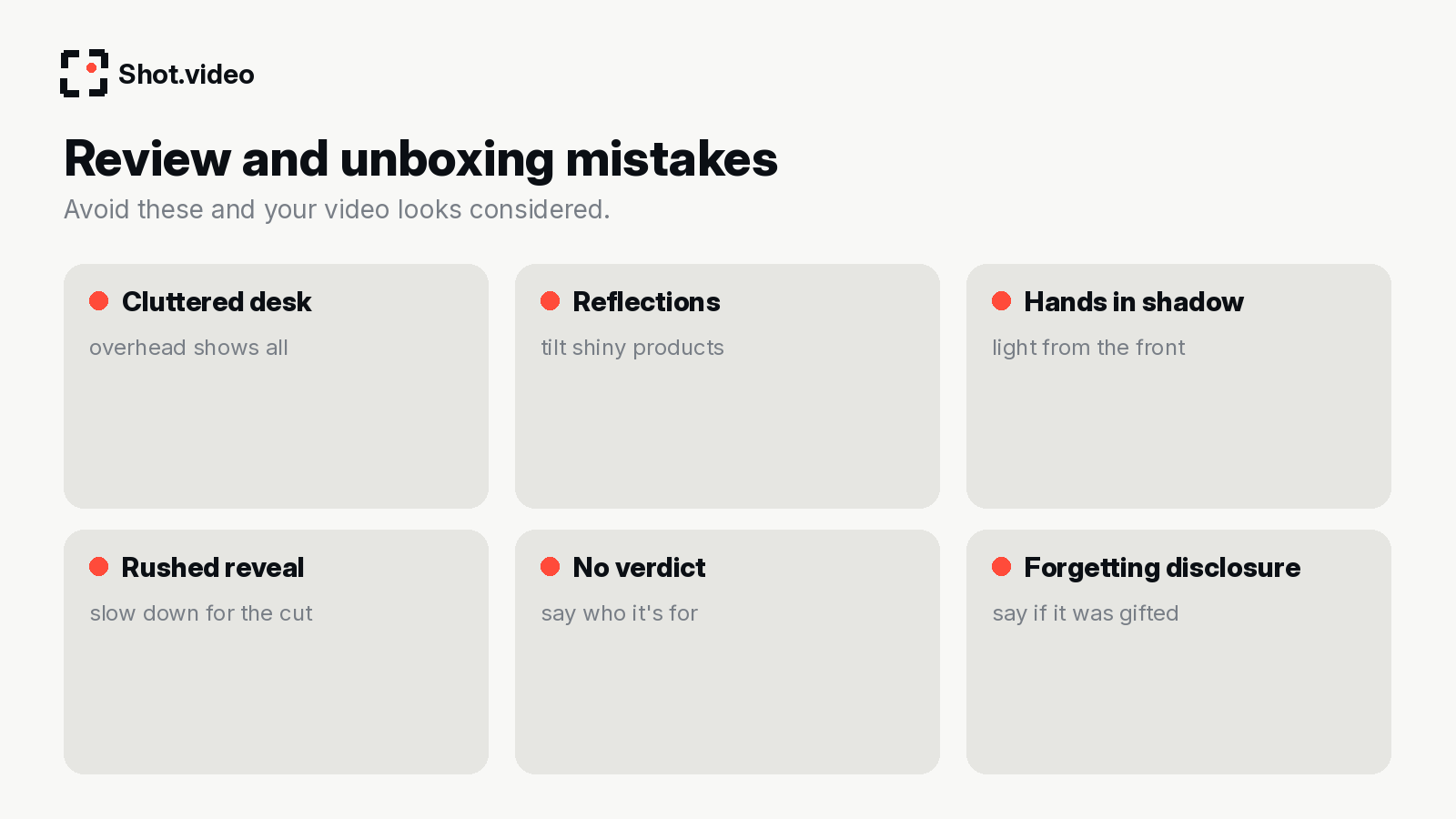
- A cluttered surface. Overhead shows everything.
- Reflections on shiny packaging; tilt the product or soften the light.
- Rushing the reveal; slow hands give the edit time to cut.
- No clear verdict. Say who the product is for and who should skip it.
- Not disclosing gifted or sponsored products, as platform rules and advertising guidelines generally require.
Making the verdict credible
Angles make a review look good; honesty makes it worth watching. Viewers trust reviewers who show the flaws as clearly as the features. Multiple angles help here too: a close-up on a loose seam or a slow port is more convincing than describing it. Structure the verdict in three parts: who it is for, who should skip it, and what you would change. Say it to camera, because a face delivers a verdict better than a voiceover.
A worked example: one product, three formats
Illustrative only. A creator receives a new pair of headphones. She sets up an overhead phone above the box, a close-up phone low on the left and uses the laptop camera for her face, then scans the QR codes and records once: intro, unbox, details, pairing the headphones with their app on screen, wearing them, and the verdict.
From that single recording she gets three things. First, a full YouTube review, where the first edit already cuts from her face to the overhead reveal and to the close-up as she turns the ear cups. Second, a short clip of just the reveal for social, which she cuts down from the long version (see clipping vs multi-angle editing). Third, a few stills and clips she can reuse as B-roll in a future comparison video. One setup, one take, three outputs.
Lighting and sound on a budget
- Light from the front or both sides so the overhead shot has no hand shadows.
- Diffuse harsh light with a sheet of baking paper or a white curtain to cut reflections on packaging.
- Record somewhere quiet; the laptop mic plays under every shot, so a soft room helps.
- Use a plain surface: a desk mat or a large sheet of card in a neutral colour makes products pop.
FAQ
How many cameras do I need for an unboxing video?
Two is a good start (face and overhead). Three or more lets you add close-ups. Shot.video supports two to five phones plus your laptop.
Do the phones need an app?
No. Each phone joins by QR code and records in its browser.
Can I use my own product photos as B-roll?
Yes. Upload your own B-roll or approve suggestions.
Related: multi-camera recording guide · repurposing into short clips · product demo videos
Make your next video your best one yet
Your laptop. Your phone. Your screen. One recording. AI does the editing. Scan a QR code to add phones as extra cameras (no app to install), press record once, and get a polished, multi-angle first edit with smart cuts, zooms and B-roll. Get started free with Shot.video.