Shot.video vs Loom: Which Video Workflow Fits?
By Ian Naylor ·
Prepared with AI assistance. Sources and references are linked below.

Shot.video and Loom serve different video workflows. Shot.video records a screen, laptop camera and phones together in the same room, then creates an editable first cut. Loom is best for quick asynchronous workplace explanations, feedback and shared-link conversations. Choose by your recording setup and editing needs, then test one representative project before changing tools.
Who is Loom best for?
Loom is best for quick asynchronous workplace explanations, feedback and shared-link conversations. Loom records a screen, webcam or both and provides sharing links, comments, reactions and captions. Feature availability depends on the recording client. Review the official product documentation for current availability.
Who is Shot.video best for?
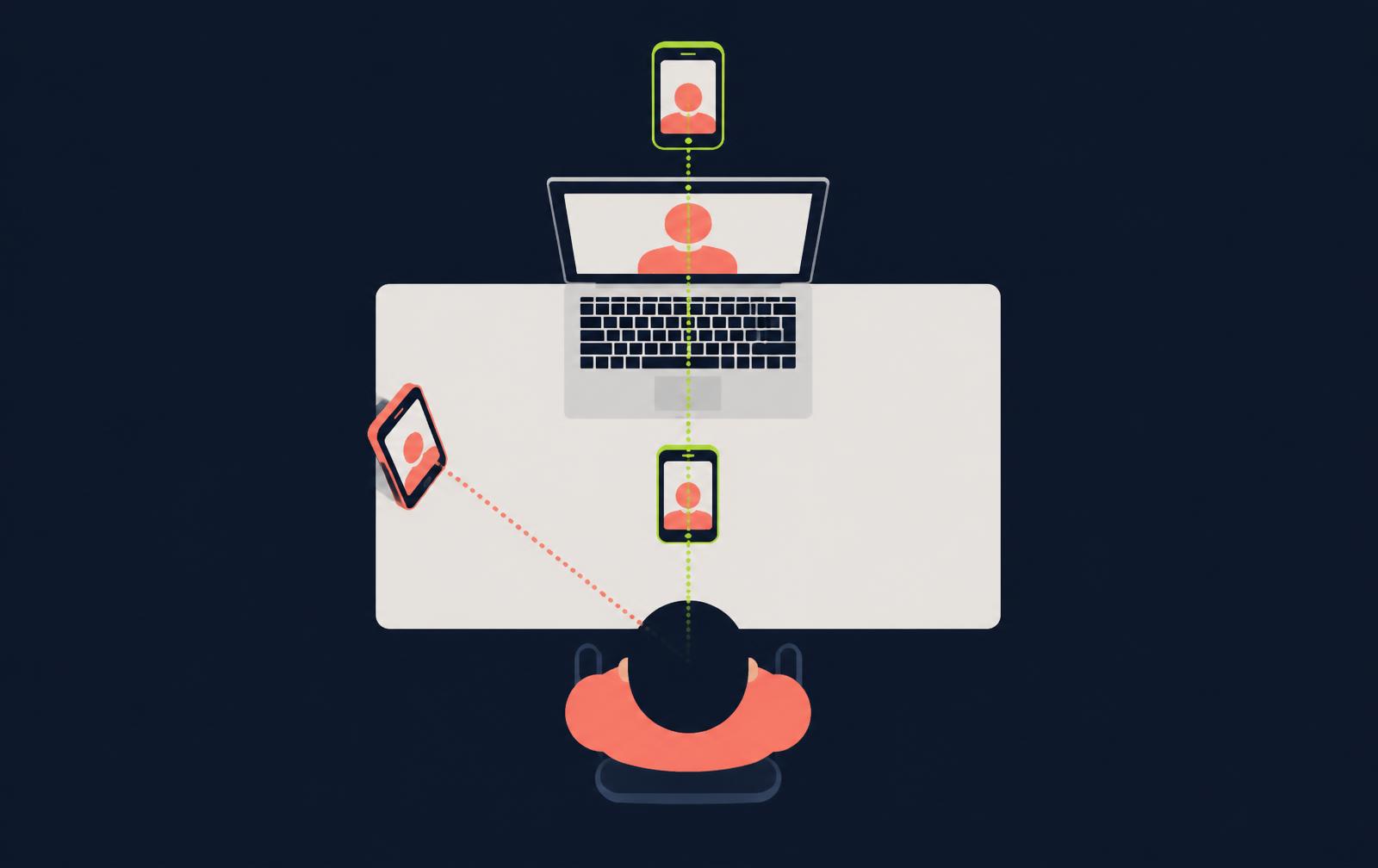
Shot.video is best for same-room demos, lessons and podcasts that need synchronized screen, presenter and phone-camera views. Phones join by QR code without an app. AI builds an editable first cut; recordings stop at ten minutes, so longer sessions need separate takes.
How do the recording and editing workflows differ?
Loom focuses on quick asynchronous workplace explanations, feedback and shared-link conversations. Shot.video starts with synchronized same-room devices and keeps camera choices, screen styling, sound, subtitles and removed sections editable. These differences describe workflow fit, not a claim that one product has every feature of the other.
- Capture: decide whether guests share a room or need remote recording.
- Editing: decide whether you need transcript revisions, detailed timeline tools or an automated multi-angle first cut.
- Delivery: check caption accuracy, export framing and the destination where viewers will watch.
Is there a free plan, and is a card required?
Shot.video has a free plan with one-time Video Credits and B-roll Credits, and no card is needed. When free credits are used, choose a paid plan or eligible credit pack; manual changes and downloads stay free. Check the other provider’s current trial and plan terms on its own website.
What should you check about pricing and feature limits?
Check the current plan, operating-system support, export options and AI allowances before committing. This comparison deliberately avoids unverified prices and package limits. Check official pricing on their website, as plans and features change frequently.
How should you test capture permissions and audio?
Make a short screen-and-audio recording on your intended devices before switching. MDN’s screen-capture reference explains that users authorize a capture source and that audio support varies by browser and selected surface; this supports the test advice, not a vendor ranking.
How should you check captions before sharing?
Review captions for synchronized dialogue, meaningful sounds and speaker identification. W3C’s prerecorded-caption guidance describes those accessibility needs; a transcript alone does not establish accurate, accessible captions.
Which guide should you read next?
Read the Best Loom alternatives guide for the related decision, or see Shot.video’s plans before a test recording.
Sources and references
- Loom official features: product facts, not independent endorsement.
- MDN: display capture permissions and audio support.
- W3C: prerecorded captions and speaker identification.